Draft
Sixteen settings pages in four groups. This chapter is the map: what each group holds, which pages have a chapter of their own, and the three worth reading carefully because they affect other things.
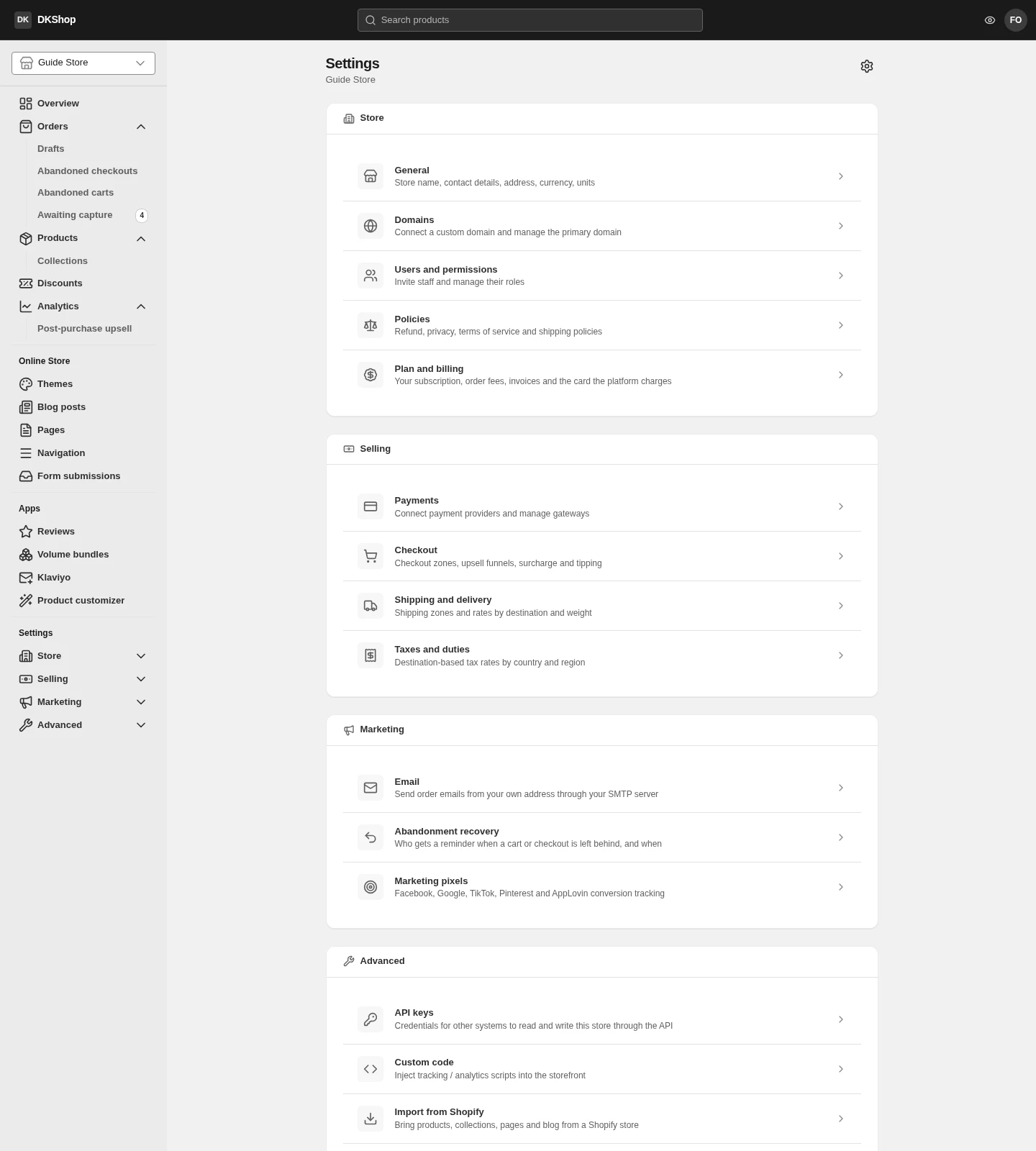
| Group | What it holds |
|---|---|
| Store | General · Domains · Users and permissions · Policies · Plan and billing |
| Selling | Payments · Checkout · Shipping and delivery · Taxes and duties |
| Marketing | Email · Abandonment recovery · Marketing pixels |
| Advanced | API keys · Custom code · Import from Shopify · Changelog |
Four of them have their own chapter: Payments · Checkout · Shipping and tax · Custom domain.
Branding is not here. The logo, favicon, colours, fonts, social links and footer all live in the theme builder — the Settings page itself says so at the bottom.
General
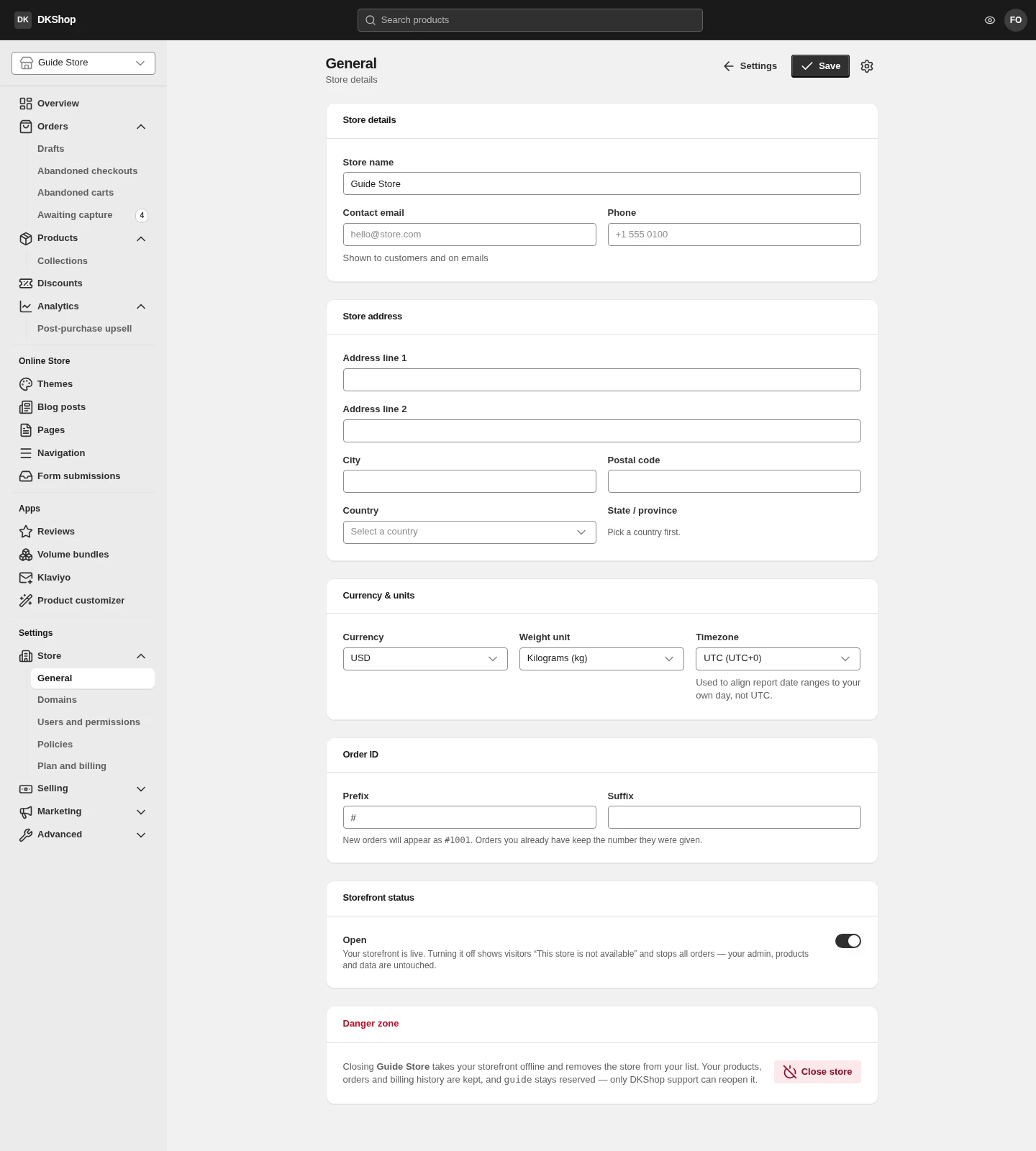
Store details — the store name, contact email and phone. The email here is the address customers see and the address order emails come from, so do not leave it empty.
Store address — your business address. Country must be picked from the list rather than typed, because it is also the default country the address form on the checkout opens on.
Currency & units — three fields, and all three are awkward to change later:
- Currency is the unit of every price in the store. Changing it does not
convert existing prices —
39.95stays39.95, only the symbol changes. - Weight unit is the unit you enter variant weights in.
- Timezone decides what hours "today" covers in reports. Set it wrong and every chart is offset from your actual working day.
Order ID — a prefix and a suffix for order numbers. The line under the field
says the important part: "New orders will appear as #1001. Orders you already
have keep the number they were given."
Changing the prefix does not renumber old orders, and that is deliberate. An order number is frozen onto the order when it is created, because the confirmation email is already in the customer's inbox. If you change the prefix and the order list looks unchanged, that is correct rather than broken.
The prefix also cannot be empty — blank it and it goes back to
#on save.
Storefront status — the switch that turns the store on and off. Off, customers see "This store is not available" and cannot order; your data, products and admin are untouched. This is the right way to pause trading.
Danger zone — Close store, visible only to the owner. Closing removes the store from your list and takes the storefront offline; products, orders and payment history are kept, the handle stays reserved, but only support can reopen it. The button makes you type the store's handle exactly before it enables — the only action in the dashboard that asks that.
Users and permissions
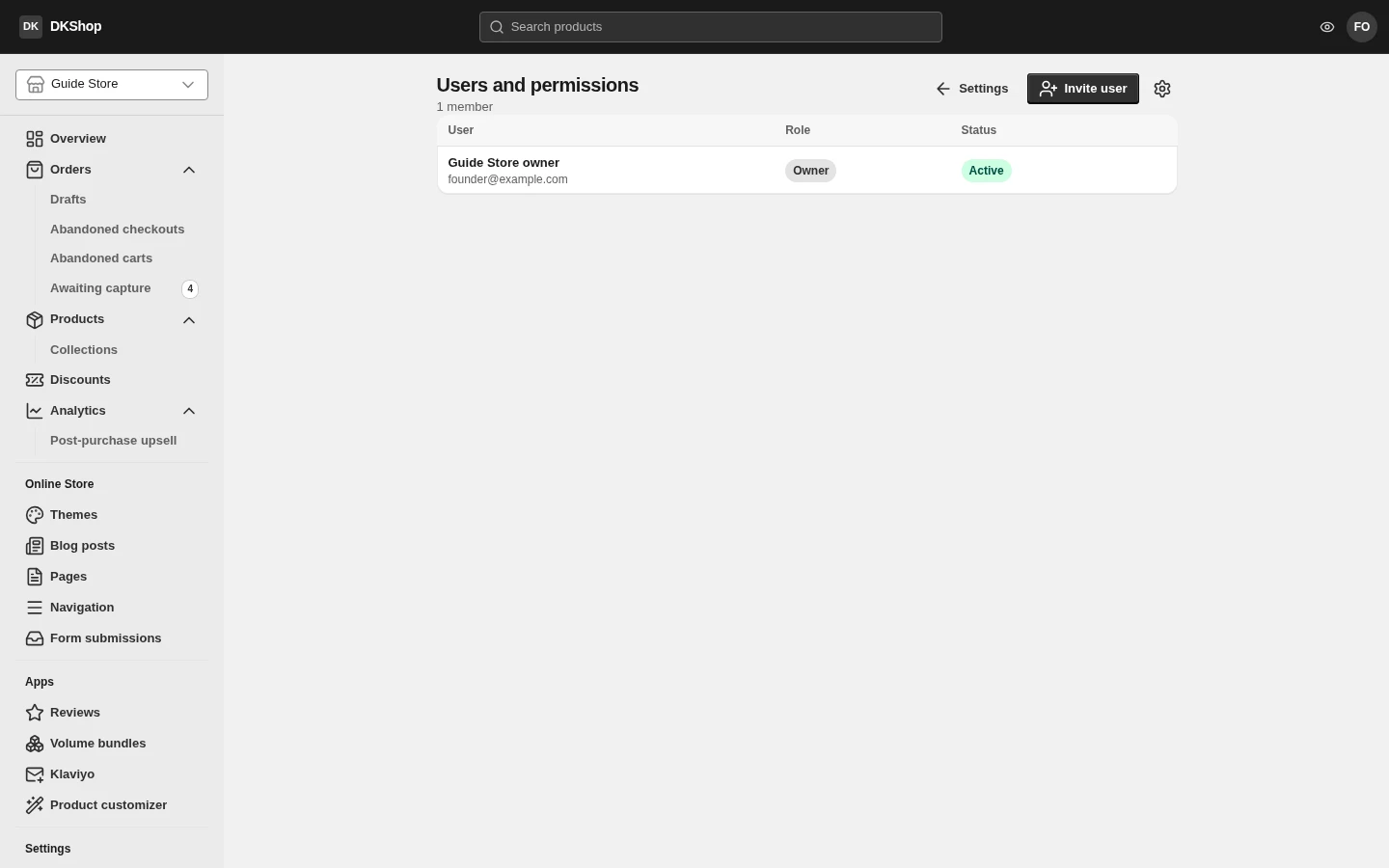
Three roles:
| Role | What they get |
|---|---|
| Owner | Everything, including closing the store and changing the platform payment card. Cannot be changed or removed |
| Admin | Nearly everything: products, orders, settings, inviting others |
| Staff | Day-to-day work. Cannot touch the sensitive settings |
Invite user sends an invitation by email. The invitee shows as Invited until their first sign-in — at which point the account activates and they can open the store.
Signing in to Dikafy is SSO; there is no per-store password. An invitation is not a set-a-password link; it simply says "this email address may open this store". The recipient signs in with their own account.
Policies
Four documents: Refund, Privacy, Terms of service, Shipping. Each has an editable title and body, and becomes a real page on the storefront that the footer links to.
There are no ready-made templates — the wording is yours, and for a refund policy it is a legal commitment rather than decoration.
Three Advanced pages worth knowing
API keys — keys that let another system read and write the store over the API. Unlike a user account, a key does not expire with a session, which is what makes it right for warehouse software, an ERP or a 3PL. Each key is either Admin (read and write) or limited, and in limited mode you set None / Read / Read + write per group of resources.
A key is shown exactly once, when it is created. It cannot be stored or viewed again — if you lose it, revoke it and make another.
Custom code — inject a <script> into the storefront. For tools not already in
Marketing pixels. Code here runs on every page a
customer sees, so only paste what you understand.
Import from Shopify — pull products, collections, pages and blog posts across from a Shopify store.
Changelog — every update that has reached production. Worth a glance when a screen looks different from the pictures in this guide.
Reference — the sixteen pages
| Group | Page | What it does |
|---|---|---|
| Store | General | Name, contact, address, currency, time zone, order numbers, storefront on/off and closing the store |
| Store | Domains | Connect a custom domain, choose the primary one → its own chapter |
| Store | Users and permissions | Invite staff, change roles |
| Store | Policies | The 4 policy documents |
| Store | Plan and billing | Your plan, per-order fees, invoices, the card the platform charges |
| Selling | Payments | Payment gateways → its own chapter |
| Selling | Checkout | Zones, upsell funnels, surcharges, tipping → its own chapter |
| Selling | Shipping and delivery | Zones and rates → its own chapter |
| Selling | Taxes and duties | Tax by destination → its own chapter |
| Marketing | Send order email from your own address over your own SMTP | |
| Marketing | Abandonment recovery | Who gets reminded about an abandoned basket, and when |
| Marketing | Marketing pixels | Facebook, Google, TikTok, Pinterest, AppLovin |
| Advanced | API keys | Keys for other systems. Shown exactly once |
| Advanced | Custom code | Inject a script into the storefront |
| Advanced | Import from Shopify | Import products, collections, pages, blog posts |
| Advanced | Changelog | The platform's own release log |
Next: Products — building the catalogue, if you have not already.
Verified against 82dff35b1474 · 2026-08-29