Draft
This guide takes you from nothing to a real store: a theme, menus, policy pages, ready for its first product. It takes about two minutes.
The admin console is in English, so every button label and status below is quoted verbatim — the exact words you see on screen. The reference table at the end of each chapter lists every field on that screen.
Signing in
The admin console has exactly one way in: SSO. There is no password box, no "create an account", and no "forgot password" — because there is no password to forget.
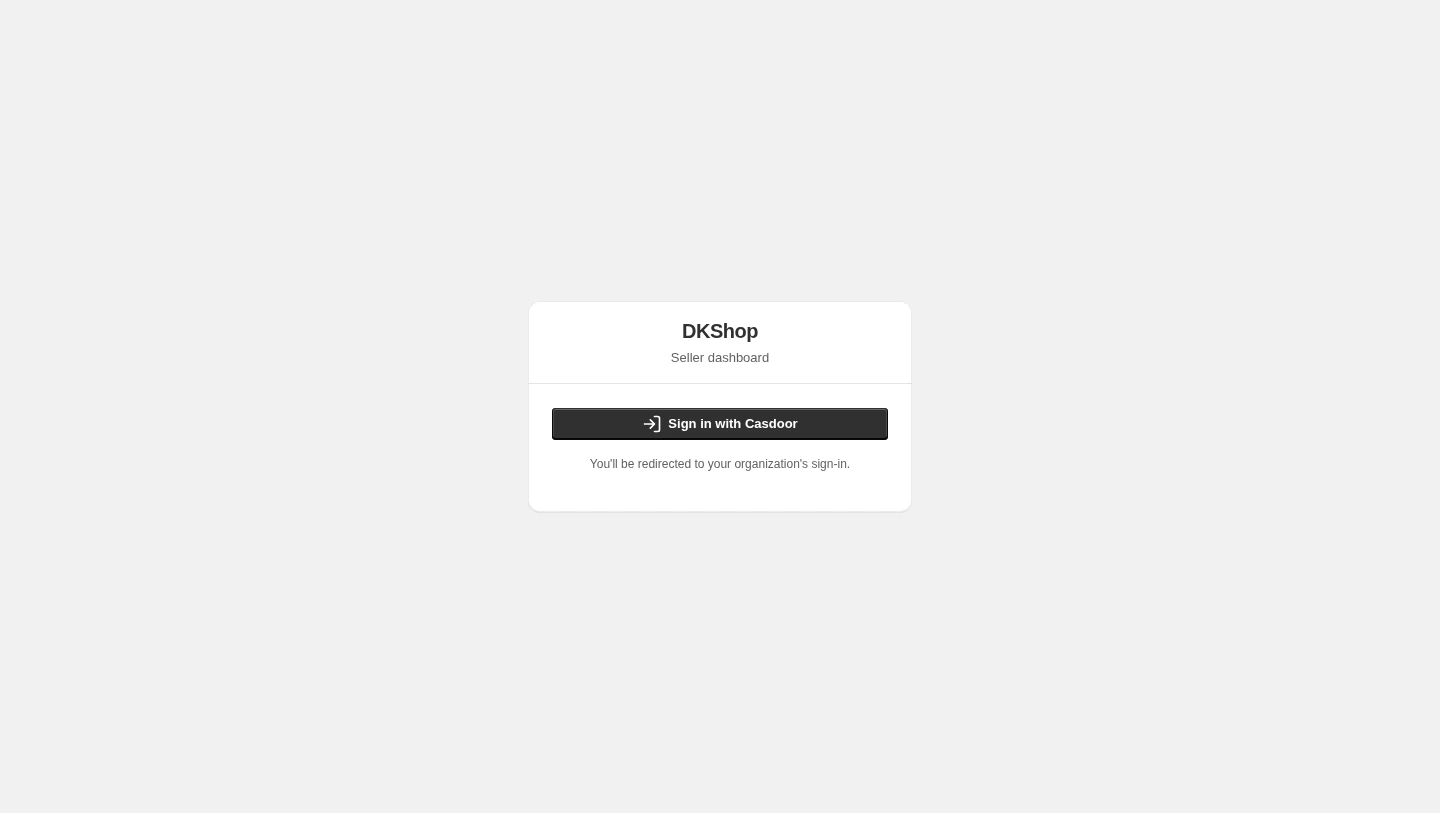
Press Sign in with Casdoor. You are handed to your organisation's own sign-in page, you authenticate there, and you are handed back. The first time you sign in, your seller account is created automatically — nobody has to approve it first.
If a colleague invited you to an existing store, the flow is identical: the invitation is the access, and it activates on your first sign-in. There is no "accept invitation" link to press.
Choosing a store
One account can own several stores, so after signing in you always land on the store picker.
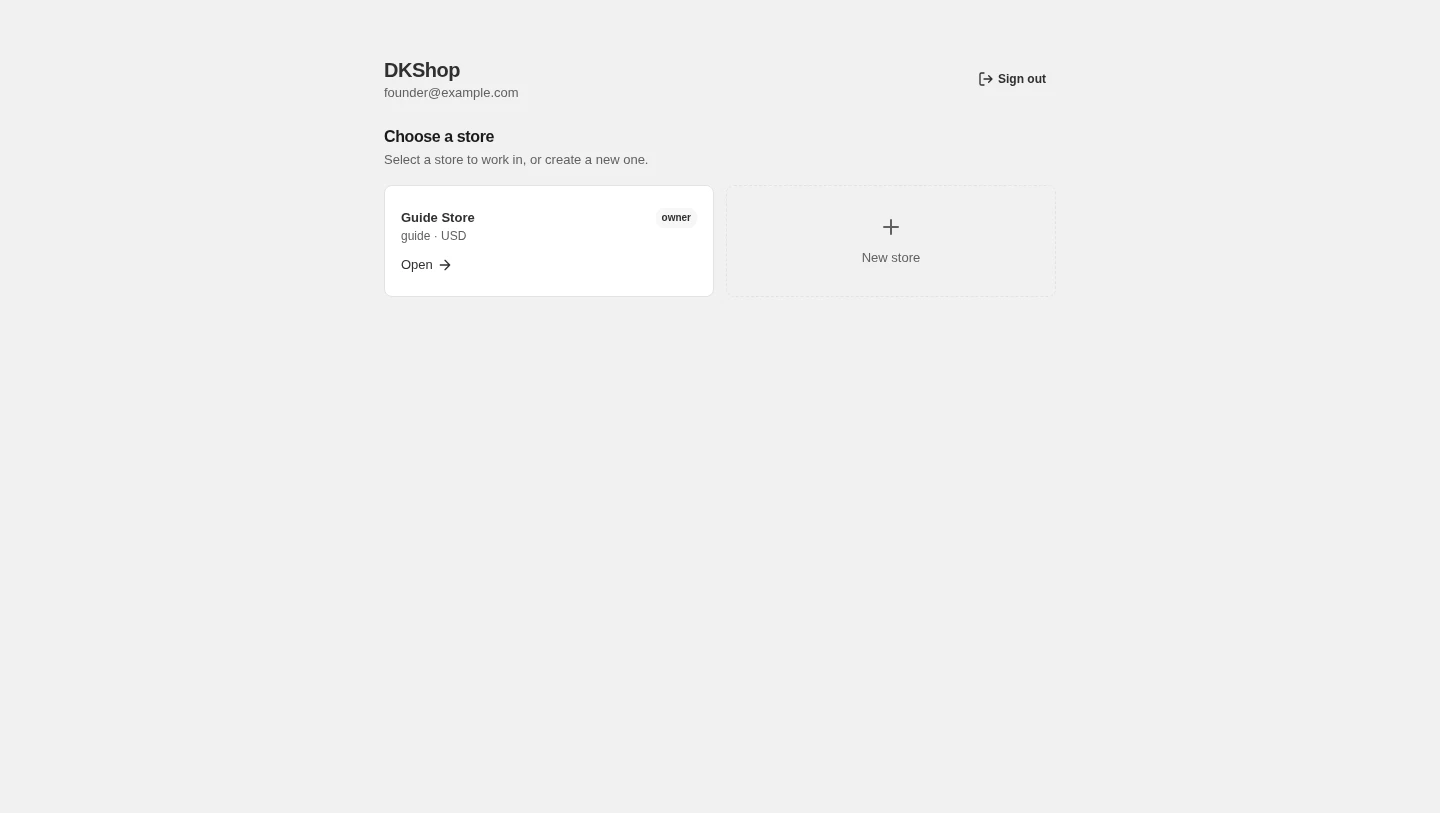
Each card shows the store name, a handle · CURRENCY line, and your role
(owner if the store is yours). Press Open to go in. The dashed New store
card on the right is where you create another one.
If you only have one store this is still the screen you meet — it does not jump straight in, because opening the wrong store is a far more expensive mistake than one extra click.
Creating a store
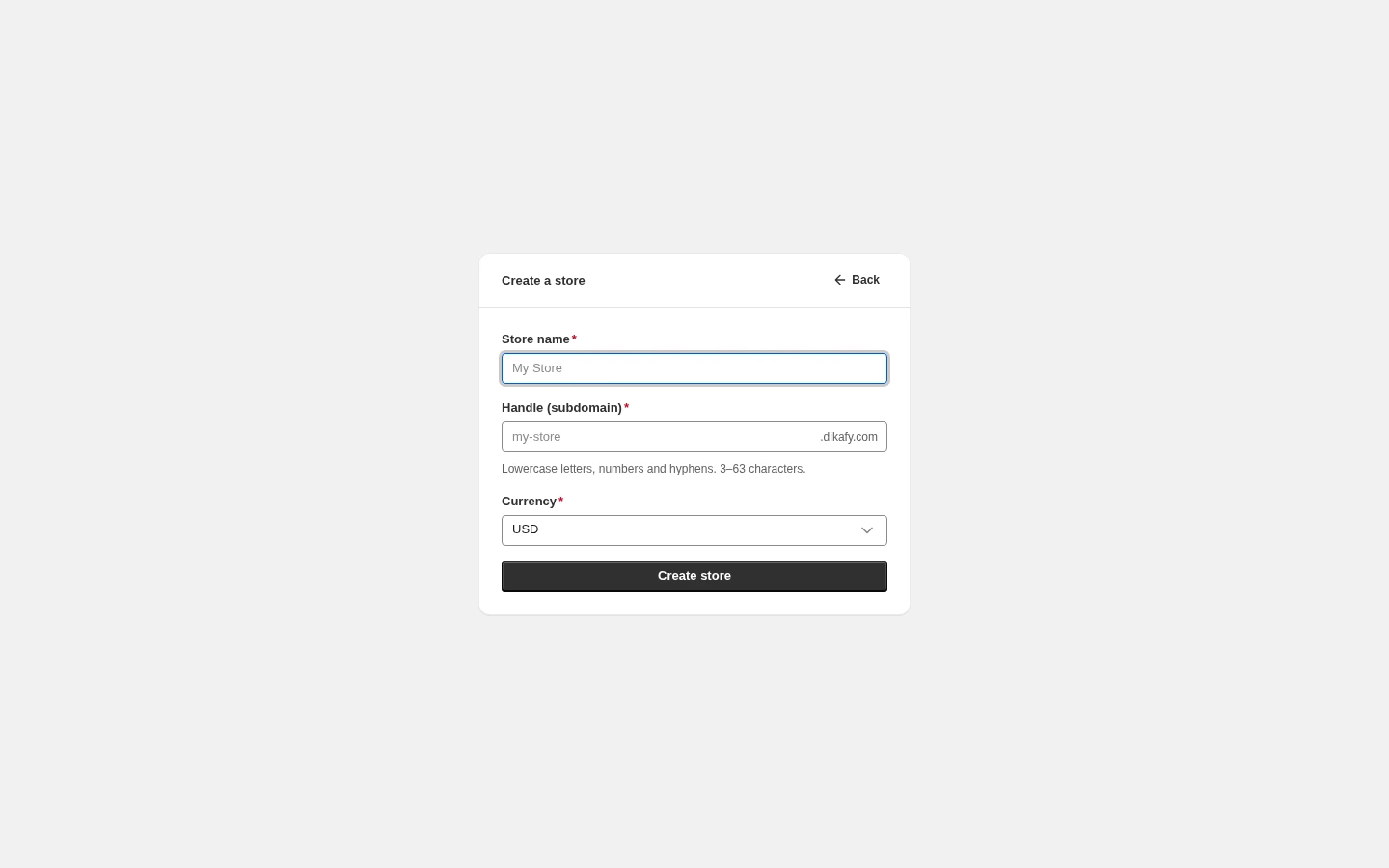
Three fields, all required:
Store name — the store name as customers see it. Change it whenever you like under Settings → General.
Handle (subdomain) — the store's free address: type myshop and the store
opens at myshop.dikafy.com. This field fills itself in from the name you
type until you edit it yourself; once you do, it stops following along. It
accepts lowercase letters, digits and hyphens, 3–63 characters. If the handle
is taken you will see "That handle is already taken. Try another."
Currency — the store's currency. The list today: USD, EUR, GBP, VND, AUD, CAD, JPY, SGD.
Press Create store.
The handle is the one thing here worth thinking about. The name and the currency can be changed later; the handle is tied to the
myshop.dikafy.comaddress you are about to start using. You can always add a custom domain (myshop.com) later — see Connecting a custom domain — but the.dikafy.comaddress stays.
What a new store already has
Press Create store and you land straight on the overview. The store is not empty:
- A published theme. Dawn is installed and published, so opening
myshop.dikafy.comgives you a properly designed page rather than a blank one. - Default navigation menus for both the header and the footer.
- Policy pages (refund, privacy, terms, shipping) plus About and Contact, already linked into the menus.
Which means you can open the storefront and look at it before you add your first product.
Two values are set for you and are not on the create-store screen: the time zone is UTC and the language is en. Change both under Settings → General.
Reference — the Create a store screen
| Field / button | Required | Default | Notes |
|---|---|---|---|
| Store name | Yes | empty | The display name. Editable under Settings → General |
| Handle (subdomain) | Yes | filled in from Store name | Lowercase, digits, hyphens; 3–63 characters. Decides handle.dikafy.com |
| Currency | Yes | USD |
USD · EUR · GBP · VND · AUD · CAD · JPY · SGD |
| Create store | — | — | Creates the store, selects it, and takes you to the overview |
| Back | — | — | Only shown once you have at least one store |
| Error message | What it means |
|---|---|
| That handle is already taken. Try another. | The handle is in use — change the handle, not the name |
| Store name is required. | The Store name field is empty |
| Invalid store name or handle. | The handle is malformed (capitals, spaces, odd characters, shorter than 3) |
Next: A tour of the dashboard — four stat tiles, the revenue chart and the left-hand navigation.
Verified against 82dff35b1474 · 2026-08-29