Draft
A discount in Dikafy is described by two independent questions: how the customer triggers it (a code, or automatically), and what it discounts (the whole order, some products, shipping, or buy X get Y). The two are chosen separately, so all four kinds can be either a code or automatic.
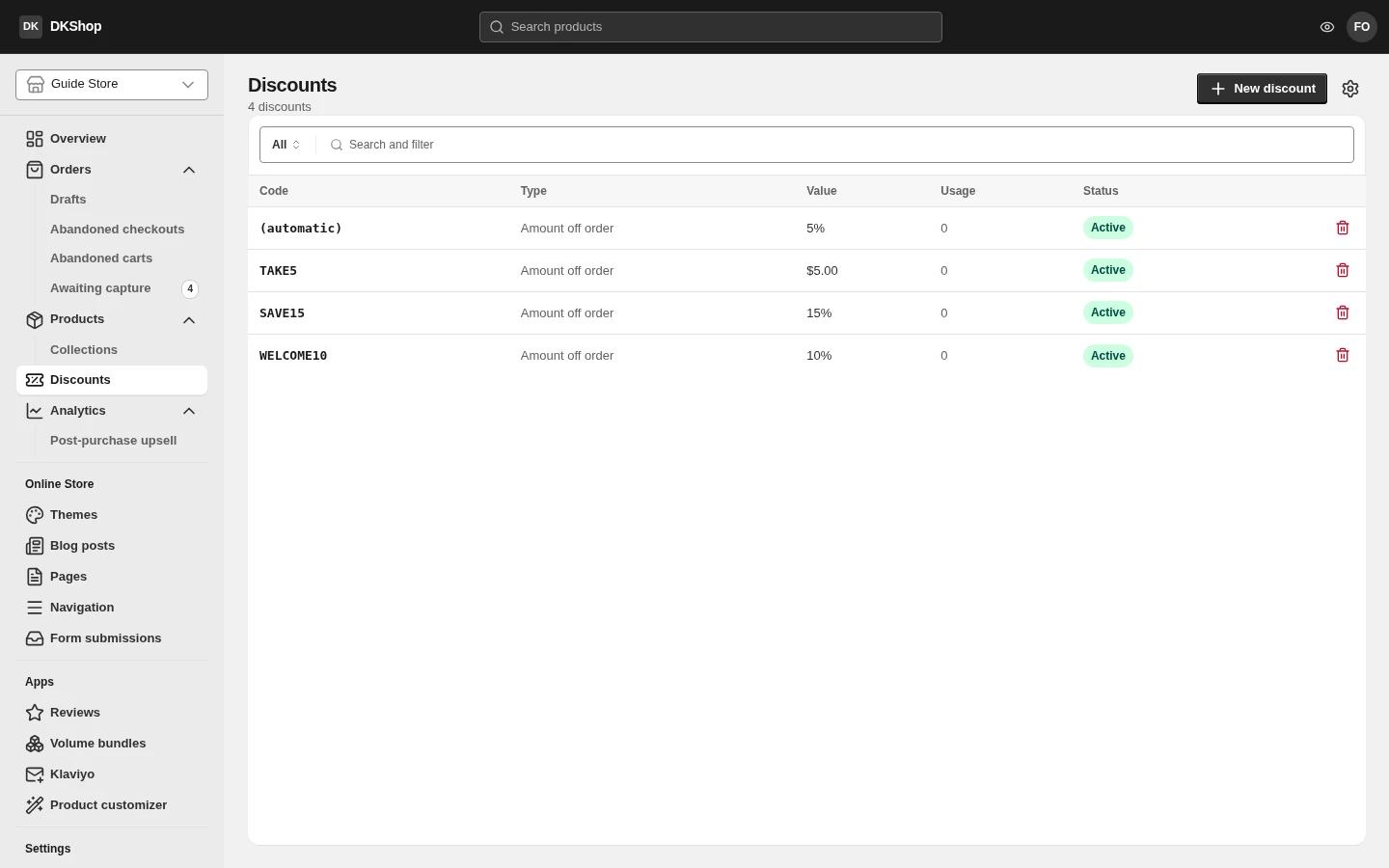
Code or automatic
| Discount code | Automatic | |
|---|---|---|
| What the customer does | Types a code at the checkout | Nothing |
| Good for | Campaigns, influencers, cart-recovery email | Store-wide promotions, order thresholds |
| Measurable? | Yes — counted per code | Hard to separate from ordinary revenue |
| Where it appears | The Discount code box at the checkout | Deducted from the total automatically |
Codes and automatic discounts do not stack
This is the most important thing in the chapter. When a customer types a code, the automatic discount is no longer considered — not "take the larger one", but the code replaces it entirely.
The awkward consequence, measured on this very store's configuration: an automatic 5% off orders over $100, and a $144.00 basket.
What the customer does Discount They pay Types nothing $7.20 (the automatic 5%) $136.80 Types TAKE5($5 off)$5.00 $139.00 Using the code costs them $2.20 more. Nothing warns the customer, and nothing warns you.
So if you run an automatic discount, make sure every code you hand out is more generous than it at the basket sizes you are aiming at.
Between several automatic discounts it works differently: the system considers them all and picks the one worth the most money on that basket. Free shipping only wins when no money-off discount qualifies.
The four kinds
Chosen in the Discount type field.
Amount off order
Off the order total. Choose Percentage (10 = 10%) or Fixed amount (in
cents — 500 = $5.00). This is the most-used kind.
Amount off products
The same, but calculated only on the part of the basket that matches the scope. The Applies to field offers three choices: all products, specific products, or specific collections. Pick products or collections through the search box — by name, not by code.
Use it for "20% off everything in the summer range" without touching the rest of the basket.
Free shipping
Free delivery. It also has an Applies to field, to limit it by product or collection.
If all you want is "free shipping over $75" for every customer, doing it in Shipping as a zero-price rate with a Min subtotal threshold is more correct — it appears in the list of delivery methods rather than as a deduction at the bottom.
Buy X get Y
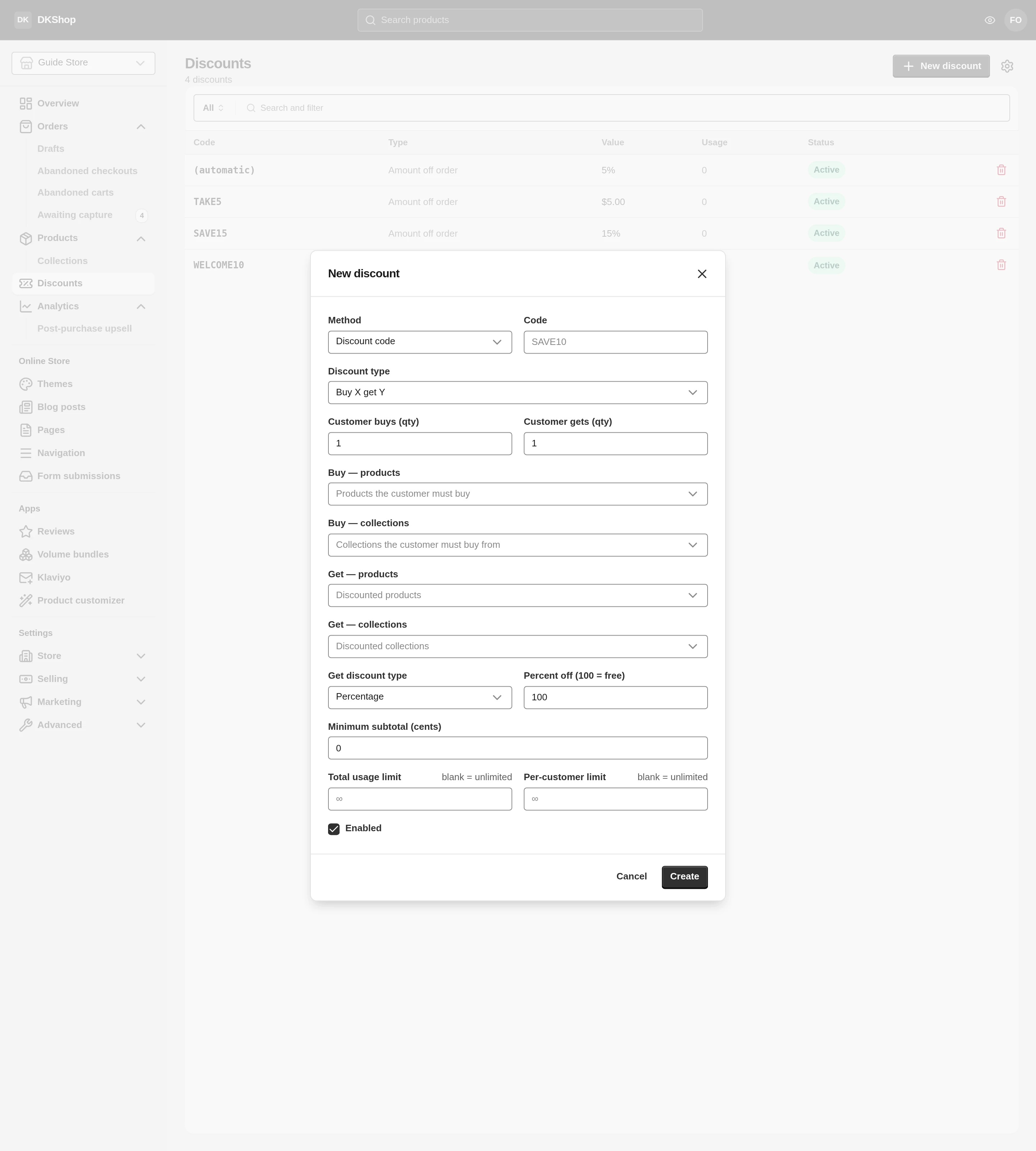
The most involved kind, and the only one with two sides:
- Customer buys (qty) + Buy — products / Buy — collections — the condition. How many they must buy, from which group.
- Customer gets (qty) + Get — products / Get — collections — the reward. How many items are discounted, from which group.
- Get discount type + value — how much off the reward.
100percent means free (the field's own label says "100 = free").
A "buy 2 get 1 free" in the T-shirts collection: buys 2, gets 1, both sides
set to the T-shirts collection, Get discount type = Percentage, value 100.
The two sides may point at the same group (as above) or at different ones ("buy a shirt, get socks").
Conditions and limits
These three fields apply to every kind.
Minimum subtotal (cents) — the basket must reach this before the discount
counts. In cents: $50 is 5000. 0 means no threshold.
Total usage limit — how many times it may be used across all customers. Empty
means unlimited. The Usage column counts down for you as used / limit.
Per-customer limit — how many times one customer may use it. This is the field
for a "new customers, once only" code: set it to 1.
Enabled — untick to stop a discount without deleting it. This is the right way to end a campaign, because the usage history survives.
The list does not show the minimum threshold. The Value column only reads
15%or$5.00, so two codes look identical while one needs a $50 order and the other does not. To know, you have to open each. Worth remembering when you have several running — naming codes so they say their own condition (SAVE15OVER50) is the way around it.
Creating, editing, deleting
New discount opens the form. The fields change with the Discount type you pick, so choose the kind first and then fill it in.
Press anywhere on a row to open it — the whole row is the target, not just the code column.
The bin deletes it outright. It does not ask twice, and the usage history goes with it. To stop a discount, untick Enabled rather than deleting.
The bar above the table filters by Status, Method and Type, and the search box finds codes.
Reference
| Field | Meaning |
|---|---|
| Method | Discount code (typed) or Automatic (applied for them) |
| Code | Only shown when Method is code. The exact string customers type |
| Discount type | 4 kinds, deciding the fields below |
| Value type | Percentage or Fixed amount |
| Percent (%) | An ordinary percentage — 10 = 10% |
| Amount (cents) | Cents — 500 = $5.00 |
| Applies to | (product / shipping) All · specific products · specific collections |
| Products / Collections | A search box, multi-select |
| Customer buys (qty) | (bxgy) How many they must buy |
| Customer gets (qty) | (bxgy) How many are discounted |
| Buy — products / collections | (bxgy) The condition side |
| Get — products / collections | (bxgy) The reward side |
| Get discount type + value | (bxgy) 100% = free |
| Minimum subtotal (cents) | Cents. 0 = no threshold |
| Total usage limit | Empty = unlimited |
| Per-customer limit | Empty = unlimited. 1 = once per customer |
| Enabled | Unticked = stopped, history kept |
| Table column | Meaning |
|---|---|
| Code | The code, or (automatic) |
| Type | The kind of discount |
| Value | Its value. Does not show the minimum threshold |
| Usage | used, or used / limit |
| Status | Active / Disabled |
Next: Orders — how an order reaches the list and how you handle it.
Verified against 82dff35b1474 · 2026-08-29