Draft
Settings → Checkout gathers three different jobs into three tabs, in the order you actually do them: route the customer (Zones), decide what they are offered (Funnels), then store-wide options (Settings).
If you never open this page the store still sells perfectly well — with no zones no funnel runs, and the checkout is the default one. This is the extra, not the requirement.
How post-purchase upsell works
Before the tabs, the mechanism — because it differs from the "recommended products" most platforms call an upsell.
The customer presses pay → the funds are held, not taken → they see one or more offers → each acceptance adds a line to the same order → finally one single charge.
Which means:
- The customer does not re-enter their card. One press and it is done.
- There is one order, one invoice, one shipment. Not two separate orders.
- Average order value really rises, rather than being two small orders added up.
Not every gateway can do this. The gateway has to be able to raise the amount of an already-approved transaction. Check the Post-purchase upsell capability line on the gateway card — without a ✓ there, orders paid through it skip the funnel entirely.
There is also a platform-level switch for this feature. If you configure everything and the funnel still never runs, ask your platform administrator whether the store is enabled — nothing tells you when it is off.
The Zones tab — who goes into which funnel
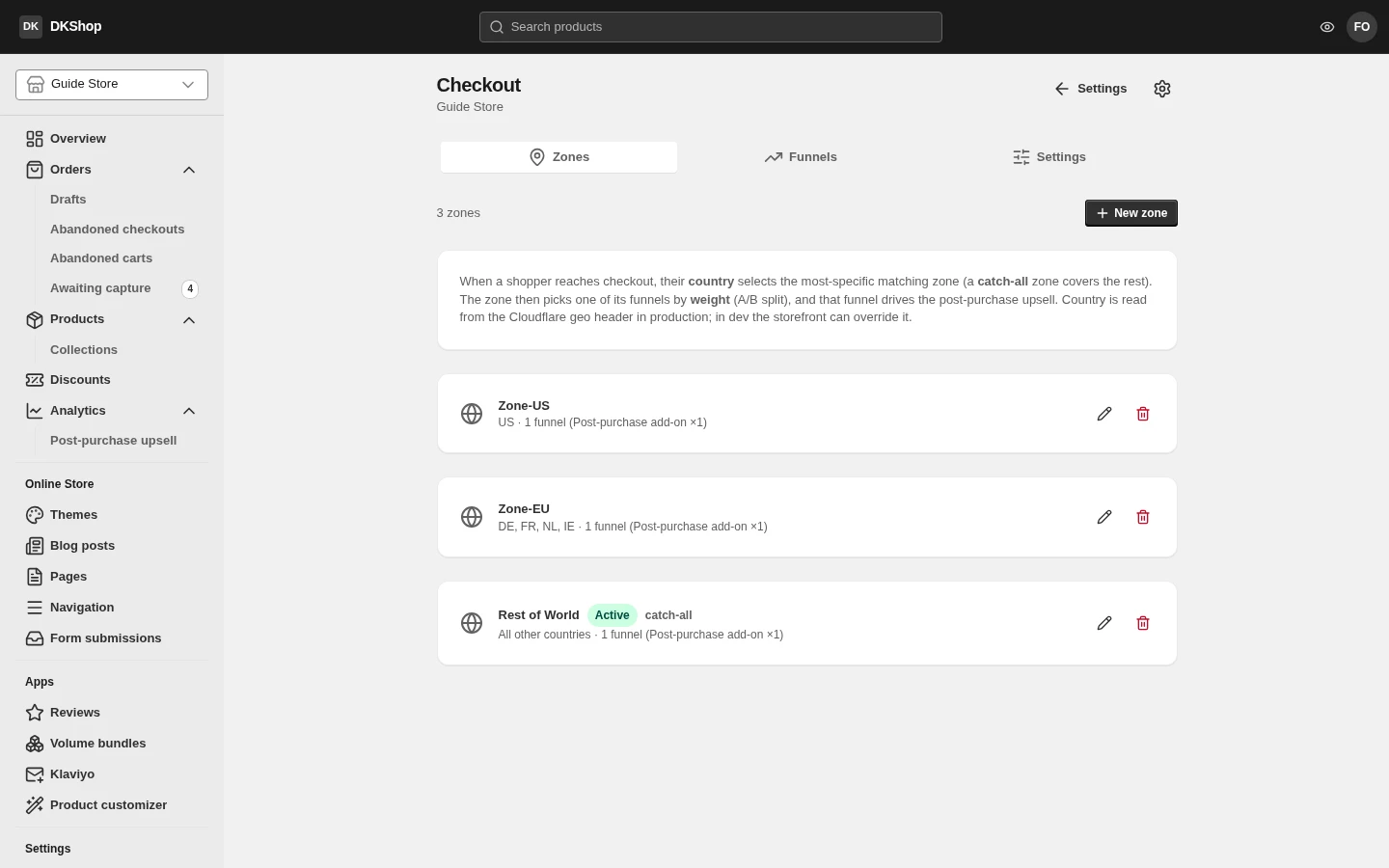
The decision chain is: the customer's country → the best-matching zone → one of that zone's funnels.
A specific zone beats a general one, the same as tax: with both Zone-US (US) and a catch-all, an American customer goes to Zone-US. A zone with an empty country list is the catch-all — it takes everywhere that matches no other zone.
A zone can hold several funnels, with weights. That is the A/B mechanism: two funnels weighted 1 and 1 send each customer to one or the other at 50/50, and the choice is stable per basket — reloading the page does not move them.
The country comes from Cloudflare's geo header in production. On a dev machine the store supplies it itself, so do not be surprised if a different zone matches between the two environments.
The Funnels tab — what to offer
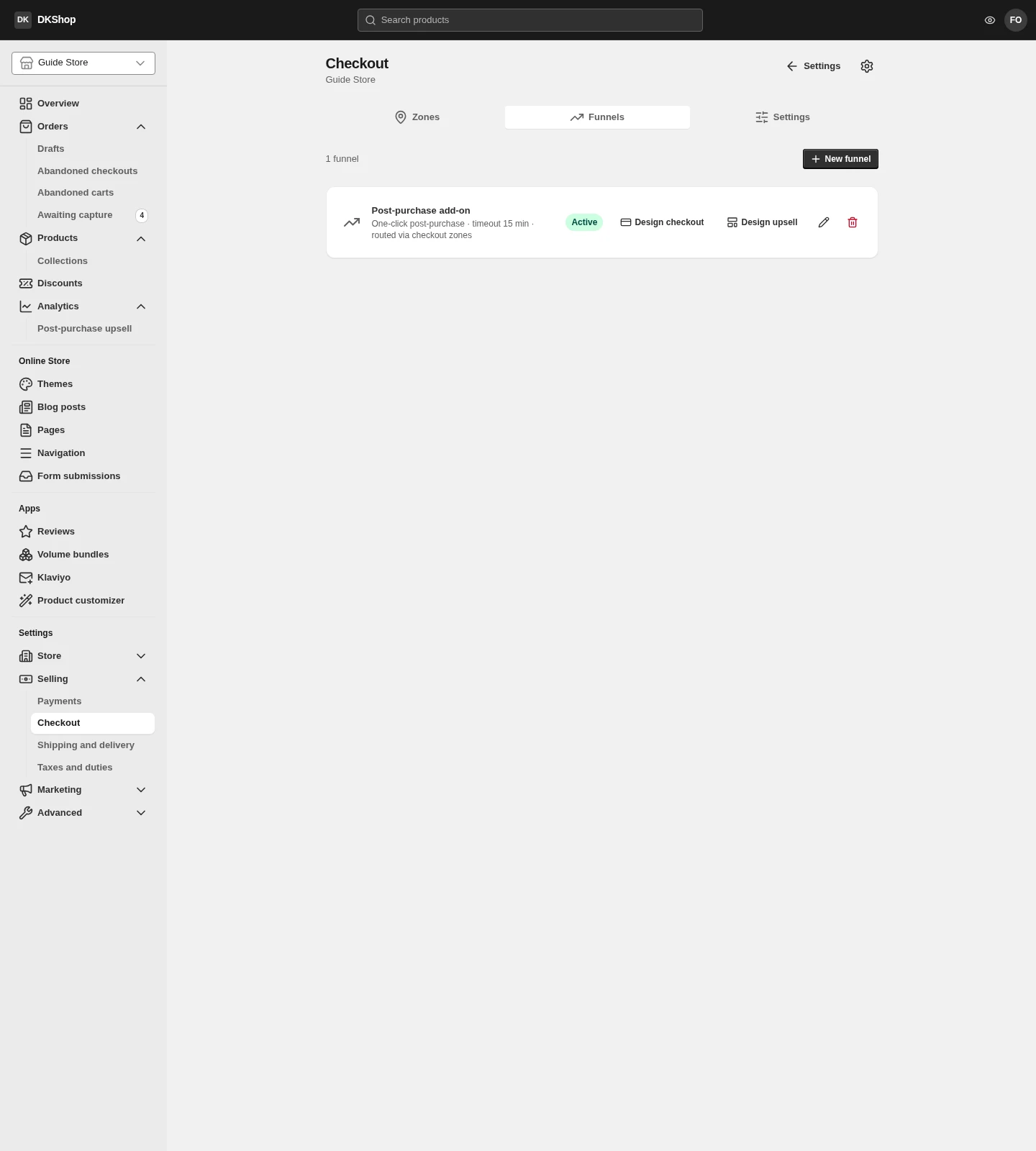
Each funnel has a name, an Active switch, a timeout, and two design links:
- Design checkout — the checkout page seen by customers routed into this funnel. Yes, each funnel has its own checkout, so A/B testing two funnels is also A/B testing two checkout designs.
- Design upsell — the offer page shown after payment.
Timeout (min) is the most worthwhile thing on this card. It is how long the customer has to answer. If they walk away, the system captures automatically whatever they accepted and closes the order. On a gateway that cannot hold funds up front, this is exactly the window in which the money is not held — so a shorter funnel is a smaller risk. 15 minutes is a sensible default.
Steps and branches
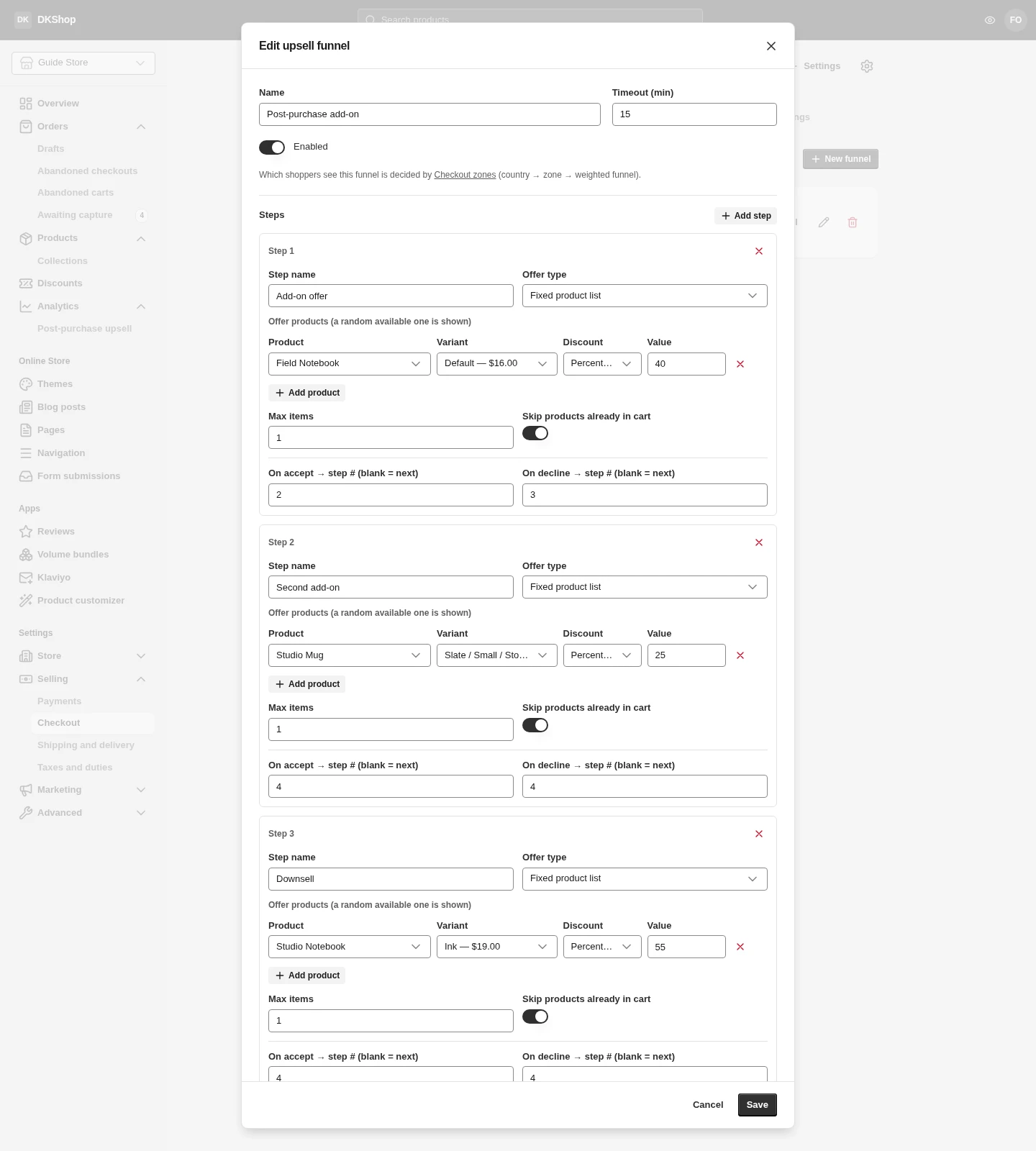
A funnel is a list of steps, and each step has two fields deciding where to go next:
- On accept → step # — where an acceptance leads.
- On decline → step # — where a refusal leads.
The number is the step number as displayed (Step 1, Step 2, Step 3), not a zero-based index. Empty means "the next step".
Pointing past the last step is how you say "end". In a three-step funnel, 4
means stop.
This is the usual shape, and the one this example store runs:
Step 1  Add-on 40%   ──accept──▶ Step 2  Second add-on 25%  ──▶ end
                     ──decline─▶ Step 3  Downsell 55%       ──▶ end
Someone who has already bought once is asked again; someone who declined is offered something cheaper. Branches only go forward — the system refuses a backward pointer, so a funnel can never loop.
The five kinds of step
| Offer type | What it offers |
|---|---|
| Fixed product list | A list you choose. It offers a random in-stock item from it |
| Cart item (extra) | Another of something the customer already bought, discounted |
| From a collection | A random item from a collection |
| Product → product | Buy A, get offered B |
| Collection → collection | Buy from collection A, get offered from collection B |
With Fixed product list, two fields matter:
- Max items — how many items one step may offer.
- Skip products already in cart — leave this on. Offering back exactly what the customer just bought is the fastest way to make a funnel look like spam.
The Settings tab — two store-wide options
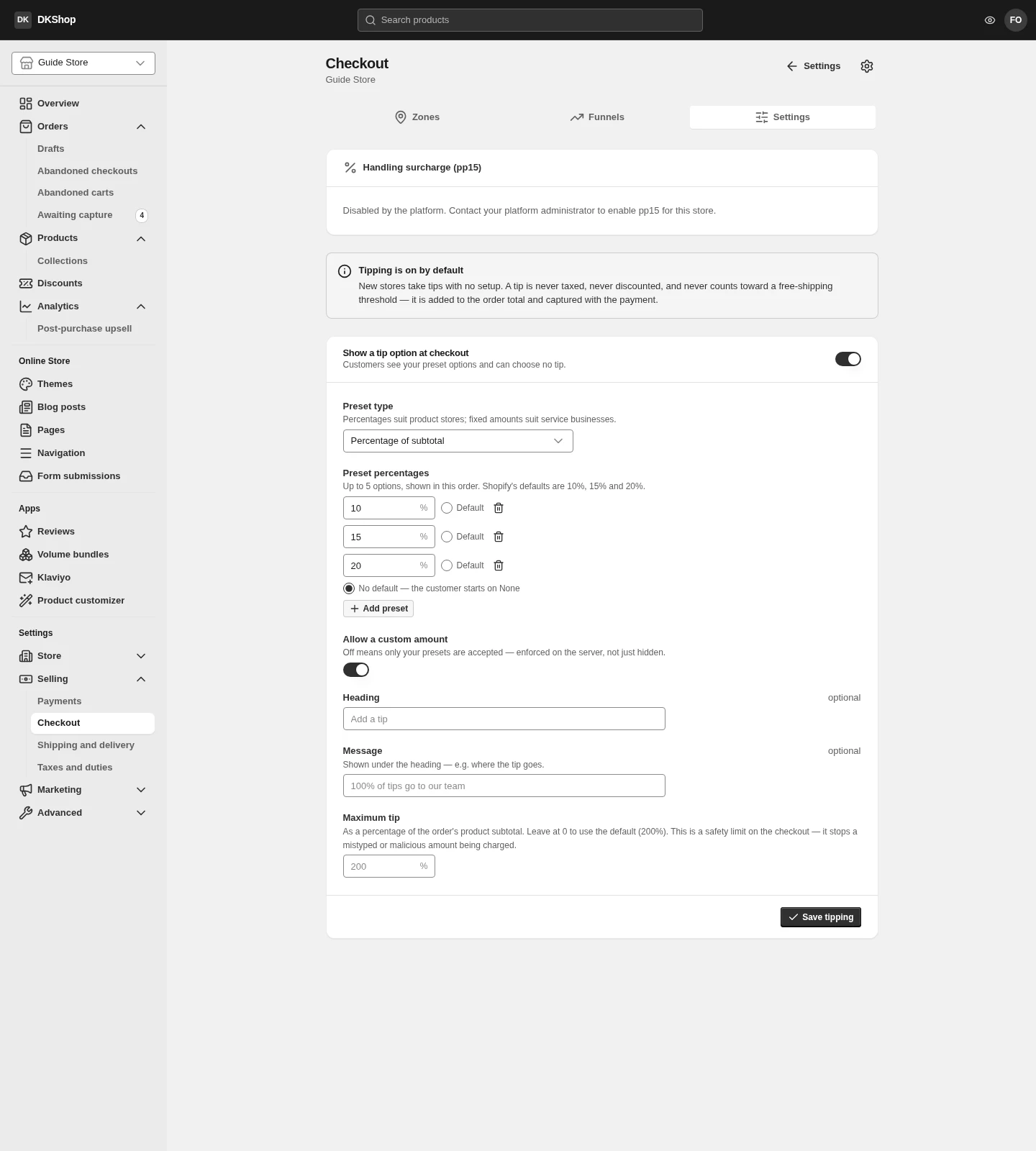
Handling surcharge (pp15)
A surcharge added to the amount collected, not shown as its own line in the order summary.
This is a feature the platform unlocks, not one you switch on. A store without it sees exactly one line: "Disabled by the platform. Contact your platform administrator to enable pp15 for this store." Once unlocked there is a switch, a Rate (%) and a Cap ($, 0 = none).
A note on that very screen, and it matters if you intend to use this: a card payment can hide the charge, but PayPal shows the real total when the customer approves. Think carefully before enabling it in a market where many customers use PayPal.
Tipping
On by default for a new store, with nothing to configure. Tips are not taxed, not discounted, and do not count towards a free-shipping threshold — a tip is added straight to the total and collected in the same charge.
| Field | Meaning |
|---|---|
| Show a tip option at checkout | Off hides the tip section entirely |
| Preset type | Percentage of subtotal suits retail; Fixed amounts suits services |
| Preset percentages / amounts | Up to 5, shown in this order |
| Default (the radio beside each preset) | The preselected amount. See the warning below |
| No default | The customer starts at None. This is the default |
| Allow a custom amount | Off means only your presets are accepted — checked on the server, not merely hidden |
| Heading / Message | The wording on the checkout. Left empty, the defaults are used |
| Maximum tip | A safety ceiling, as a % of the goods total. 0 = the 200% default |
Preselecting a tip means the customer is charged it unless they change it. That is a brand decision rather than an ordinary setting, which is why the default is No default and you have to choose deliberately.
The default is stored by value, not by position — so deleting another preset or reordering them does not move the default onto its neighbour. Switching Preset type between percentages and amounts clears the default, because
15means something completely different in the two modes.
Reference
| Tab | Control | Notes |
|---|---|---|
| Zones | New zone | Name, country list, funnels + weights |
| Zones | Empty country list | = catch-all, takes the rest |
| Zones | Several funnels + weights | A/B, stable per basket |
| Funnels | New funnel | Creates a funnel; it gets its own checkout page |
| Funnels | Active | Off stops the funnel, keeping its configuration |
| Funnels | Timeout (min) | On expiry it captures and closes the order |
| Funnels | Design checkout | This funnel's own checkout page |
| Funnels | Design upsell | The offer page shown after payment |
| Funnels | Step name | An internal label |
| Funnels | Offer type | 5 kinds, see the table above |
| Funnels | On accept / On decline → step # | The displayed step number. Empty = next. Past the last = end |
| Funnels | Max items | How many items one step may offer |
| Funnels | Skip products already in cart | Leave it on |
| Settings | Handling surcharge (pp15) | Unlocked by the platform |
| Settings | Show a tip option at checkout | On by default |
| Settings | Preset type / presets / Default | See the table above |
| Settings | Allow a custom amount | Enforced on the server |
| Settings | Maximum tip | A safety ceiling, 0 = 200% |
Next: Orders — how a funnel order differs from an ordinary one, and what the Awaiting capture page is.
Verified against 82dff35b1474 · 2026-08-29