Draft
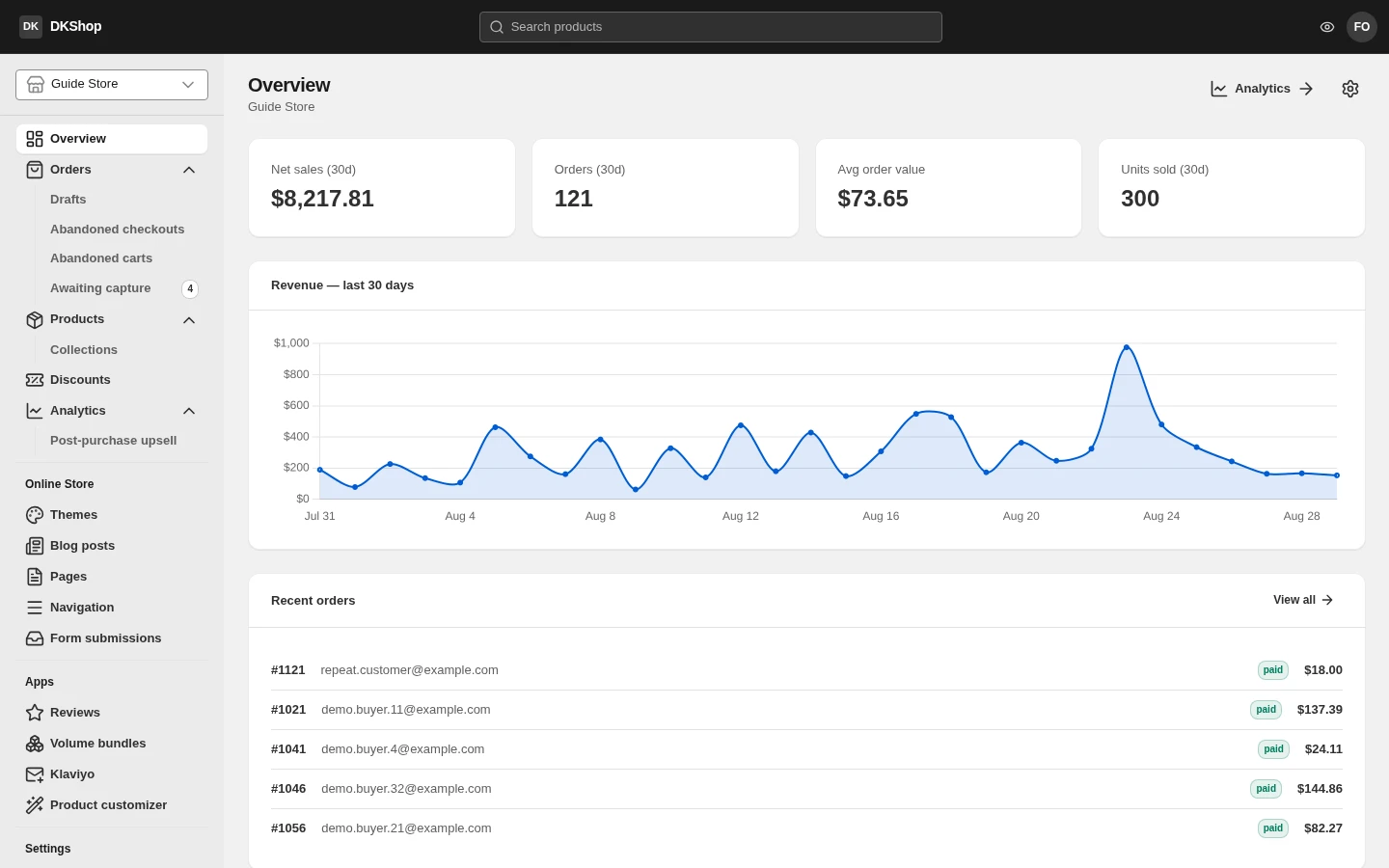
This chapter walks through the three things you see on every screen — the top bar, the left-hand navigation and the overview page — so that later chapters can just say "go to Products" and you know where that is.
The top bar
Three things, left to right:
The platform name — press it to go back to the overview.
Search products — the search box in the middle. As the name says, it searches products only. Orders and customers have their own filters on their own pages; this box does not reach them, and its label says exactly what it does rather than promising more.
Your avatar — the first two letters of your email address. Press it for the account menu:
| Item | What it does |
|---|---|
| (your email) | Just so you know which account you are signed in as |
| Switch store | Back to the store picker |
| New store | Create another store |
| Sign out | Sign out |
The search box is hidden on a narrow screen; on a phone the navigation sits behind the hamburger button at the top of the page.
The left-hand navigation
At the top is the store you currently have open. If you have several stores, this is where you switch between them.
Below it is the whole store, in four blocks. An item with an arrow opens up — press the name to go to its main page, press the arrow to see its sub-pages.
Block one — selling and goods
| Item | Sub-pages | What it is for |
|---|---|---|
| Overview | — | The page you are reading about here |
| Orders | Drafts · Abandoned checkouts · Abandoned carts · Awaiting capture | Orders, and every state that is not yet an order |
| Products | Collections | Your catalogue |
| Discounts | — | Discount codes and automatic promotions |
| Analytics | Post-purchase upsell | Reports |
The four sub-pages under Orders are four different stages of one purchase, and the Orders chapter covers them properly. In short: Drafts are orders you create yourself; Abandoned checkouts are shoppers who filled the form in and stopped; Abandoned carts are shoppers who only got as far as the cart; Awaiting capture is money that is held but not yet taken — the shopper is somewhere in the post-purchase upsell funnel.
Block two — Online Store
Themes · Blog posts · Pages · Navigation · Form submissions. Everything a shopper sees lives here.
Block three — Apps
Reviews · Volume bundles · Klaviyo · Product customizer. Four large features, each with a chapter of its own later on.
Block four — Settings
Sixteen settings pages in four collapsible groups: Store · Selling · Marketing · Advanced. The group holding the page you are on opens itself, so going straight to a settings URL still shows you where you are.
It resizes, and it collapses. The right edge of the navigation can be dragged to change its width (232–320px). Drag it all the way left and it collapses to a 64px strip of icons; drag it back out, or double-click that edge, to reopen it. The width is remembered in this browser.
The Overview page
Four stat tiles, all of them the last 30 days:
| Tile | What it means |
|---|---|
| Net sales (30d) | Revenue after refunds |
| Orders (30d) | The number of paid orders |
| Avg order value | Net sales divided by orders |
| Units sold (30d) | Total items sold |
Revenue — last 30 days is a per-day chart. One small difference worth knowing: the chart plots gross revenue — the total of the orders paid that day — while the Net sales tile has refunds taken off. So in a month with refunds, the bars add up to more than the Net sales figure. Both are right; they answer two different questions.
Recent orders lists the five most recent orders with their number, the customer's email, payment status and total. Press a row to open the order; View all opens the full list.
All four tiles, the chart and the list show a grey skeleton while they load, and
only then the real numbers — deliberately: a tile showing 0 for half a second
reads as "nothing has sold" rather than "still loading".
Days are counted in the store's time zone, not the one you happen to be sitting in. The Overview and Analytics pages share the rule, so the two can never disagree about where a day ends. Set the time zone under Settings → General.
Reference — the full navigation
| Group | Item | Path |
|---|---|---|
| — | Overview | / |
| — | Orders | /orders |
| — | ↳ Drafts | /draft-orders |
| — | ↳ Abandoned checkouts | /abandoned-checkouts |
| — | ↳ Abandoned carts | /abandoned-carts |
| — | ↳ Awaiting capture | /awaiting-capture |
| — | Products | /products |
| — | ↳ Collections | /collections |
| — | Discounts | /discounts |
| — | Analytics | /analytics |
| — | ↳ Post-purchase upsell | /analytics/upsell |
| Online Store | Themes | /themes |
| Online Store | Blog posts | /blog |
| Online Store | Pages | /pages |
| Online Store | Navigation | /navigation |
| Online Store | Form submissions | /form-submissions |
| Apps | Reviews | /reviews |
| Apps | Volume bundles | /bundles |
| Apps | Klaviyo | /klaviyo |
| Apps | Product customizer | /customizer |
| Settings | Store · Selling · Marketing · Advanced | /settings/... |
Next: Products and variants — adding your first product, and how the variant table copes with a product that has 16 versions.
Verified against 82dff35b1474 · 2026-08-29