Draft
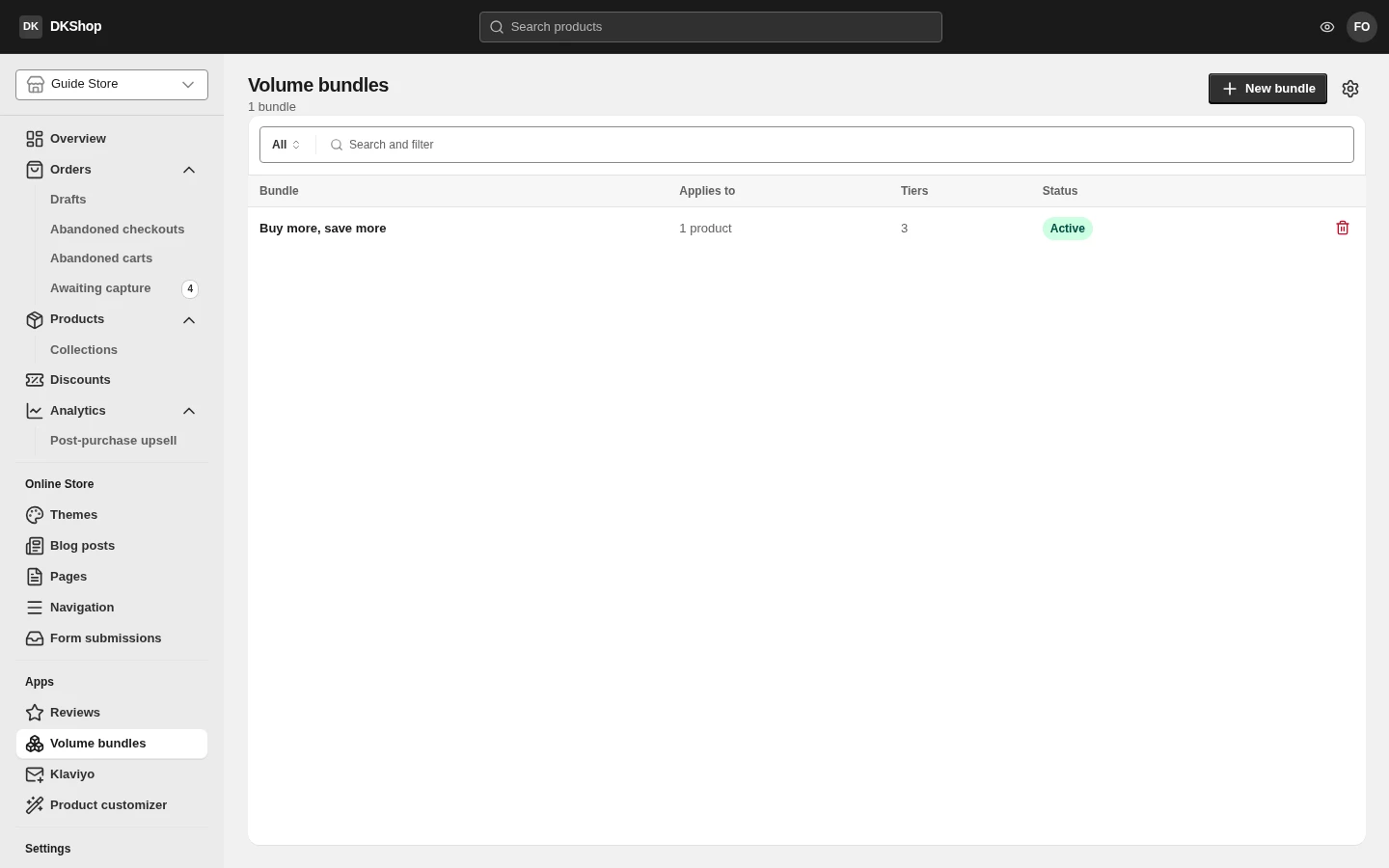
A volume bundle is "2 for less than twice the price of 1": a ladder of quantity discounts on the same product, shown as a picker on the product page.
The important part: the price follows the basket, not the button
This is the biggest difference from how most sellers picture it, and it decides everything else.
Pressing "Buy 2" is not buying a fixed pack. The button is only an intent: it puts 2 items in the basket. The price is then re-derived from scratch, from the total quantity of that product in the basket, every time the basket is read.
With a 1 / 2 / 3 ladder:
| What the customer does | The basket holds | What is charged |
|---|---|---|
| Presses "Buy 2" | 2 | One Buy 2 pack |
| Presses "Buy 1" twice | 2 | Also one Buy 2 pack |
| Presses "Buy 2" then adds 1 | 3 | One Buy 3 pack |
| Presses "Buy 3" then adds 1 | 4 | Buy 3 + 1 at list price |
| Changes the quantity from 4 to 2 | 2 | Back to Buy 2 |
What follows from that:
- Customers are not punished for pressing the wrong button. Pressing "Buy 1" four times still gets the good price.
- Each item in a bundle is an ordinary line in the basket — with its own ± and remove buttons, editable, and editing it re-derives the tiers.
- Packing is largest-first: 5 items on a 1/2/3 ladder becomes Buy 3 + Buy 2, not Buy 2 + Buy 2 + 1.
The ladder must increase. Because packing is largest-first, a larger tier that discounts less makes the customer pay more than if that tier did not exist. The editor warns you when a ladder does not increase — do not ignore it.
Gaps are worth noticing too: with tiers at 3 and 5 (no 4), a customer buying 4 is charged Buy 3 + 1 at list, and gets nothing extra for the fourth.
Creating a bundle
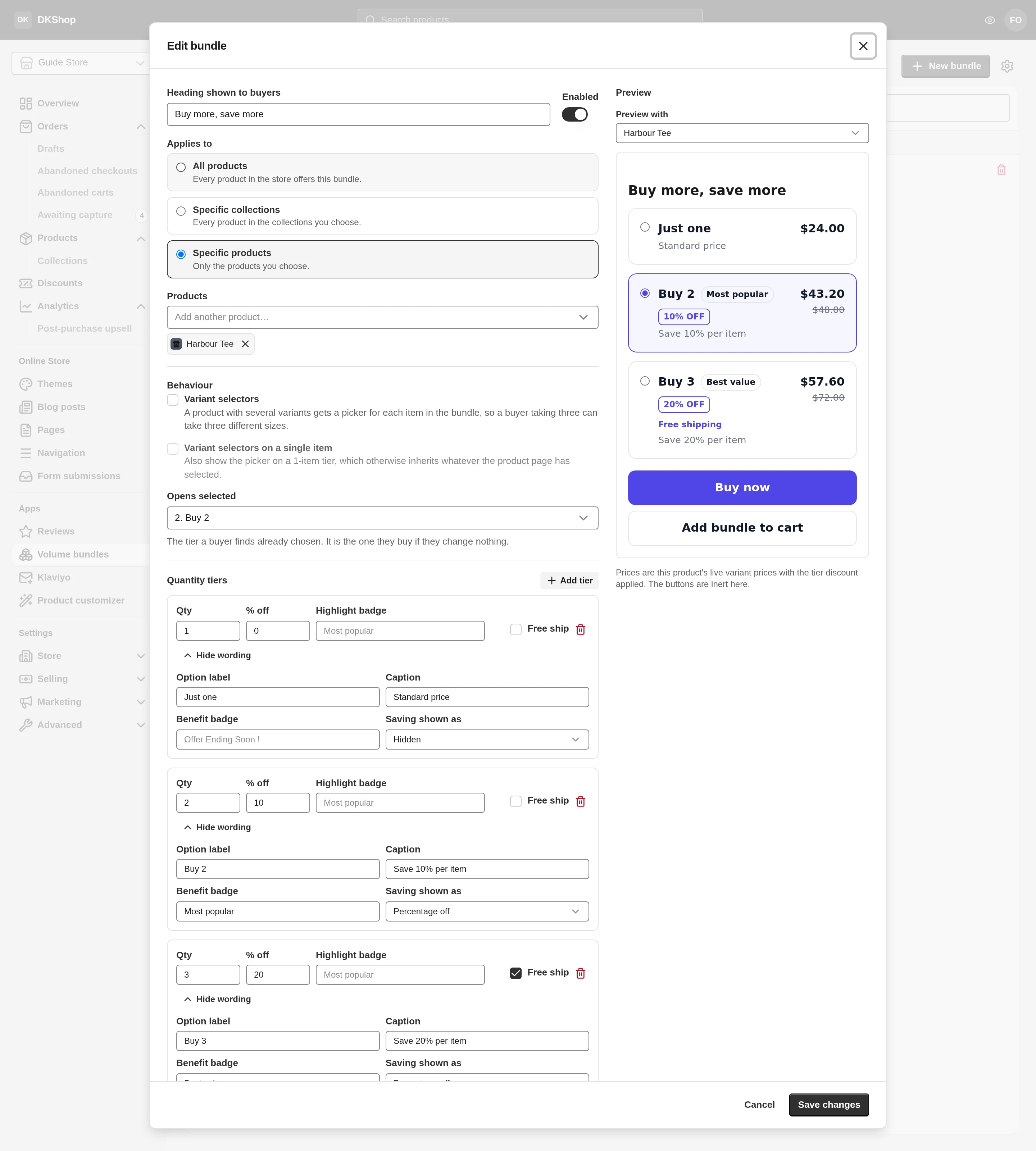
Heading shown to buyers — the title on the bundle card on the product page.
Applies to — three choices:
| Meaning | |
|---|---|
| All products | Every product in the store gets this bundle |
| Specific collections | Only products in the collections you pick |
| Specific products | Only the products you pick |
Opens selected — which tier is preselected when a customer opens the page. This is the tier they buy if they change nothing, so most stores pick a middle one: the top tier looks greedy, the bottom tier wastes the opportunity.
Quantity tiers
Each tier has:
| Field | Meaning |
|---|---|
| Qty | The quantity for this tier |
| % off | How much off each item at this tier |
| Highlight badge | A corner ribbon |
| Free ship | This tier ships free |
| Option label | The large text on the row — Buy 2 |
| Caption | The small text beneath — Save 10% per item |
| Benefit badge | A small pill beside the large text — Most popular |
| Saving shown as | Percentage off · Amount off · Hidden |
Saving shown as only changes the wording, never the money: the same discount
can read 10% OFF, or $4.80 OFF, or nothing at all. Choosing Hidden for the
1-item tier (which has nothing to boast about) is the normal thing to do.
Behaviour
Variant selectors — on a multi-variant product, each item in the bundle gets its own picker, so a customer buying 3 can take 3 different sizes. For clothing this should almost always be on; for a single-variant product it is unnecessary.
Variant selectors on a single item — shows the picker on the 1-item tier too, which otherwise simply reuses the choice made on the product page.
The preview is real
The panel on the right is not a mock-up. It is built from the same component the storefront uses, with the real variant prices of whichever product you choose in Preview with. Change a field on the left and you see it on the right before saving anything.
The panel says so itself: "Prices are this product's live variant prices with the tier discount applied. The buttons are inert here." — the buttons do nothing in the preview.
Pick a different product in Preview with to check the ladder at another price point.
How it interacts with other things
With an ordinary "Add to cart" — there is a store-level switch deciding whether items added the ordinary way count towards the bundle tiers. The default is no: switch it on and every open basket is re-priced at that moment, with nothing telling you it has just happened.
With discount codes — a bundle discounts at the line level, and a discount code applies to the total after that. The two do stack.
With personalised products — a personalised item is never pooled into a bundle. Each one is unique, so packing them together would mean nothing.
Reference
| Where | Control | Notes |
|---|---|---|
| List | New bundle | Creates a bundle |
| List | Press a row | Opens it for editing |
| Editor | Enabled | Off stops it, keeping the configuration |
| Editor | Heading shown to buyers | The bundle card's title |
| Editor | Applies to | All · Specific collections · Specific products |
| Editor | Opens selected | The preselected tier — what they buy if they change nothing |
| Editor | Variant selectors | A variant picker per item |
| Tier | Qty / % off | The quantity and the discount |
| Tier | Free ship | Free delivery at this tier |
| Tier | Option label / Caption / Benefit badge | The wording customers see |
| Tier | Saving shown as | Percentage · Amount · Hidden. Wording only |
| Preview | Preview with | The product used to price the preview |
Next: Product customizer — letting customers add a name, pick a colour, choose an image.
Verified against 82dff35b1474 · 2026-08-29