Draft
A collection groups products for shoppers to browse: T-shirts, New in, Under $25. Each collection is a real page on the storefront, and it is what a navigation menu points at.
There are two kinds, and picking the right one matters more than anything else in this chapter.
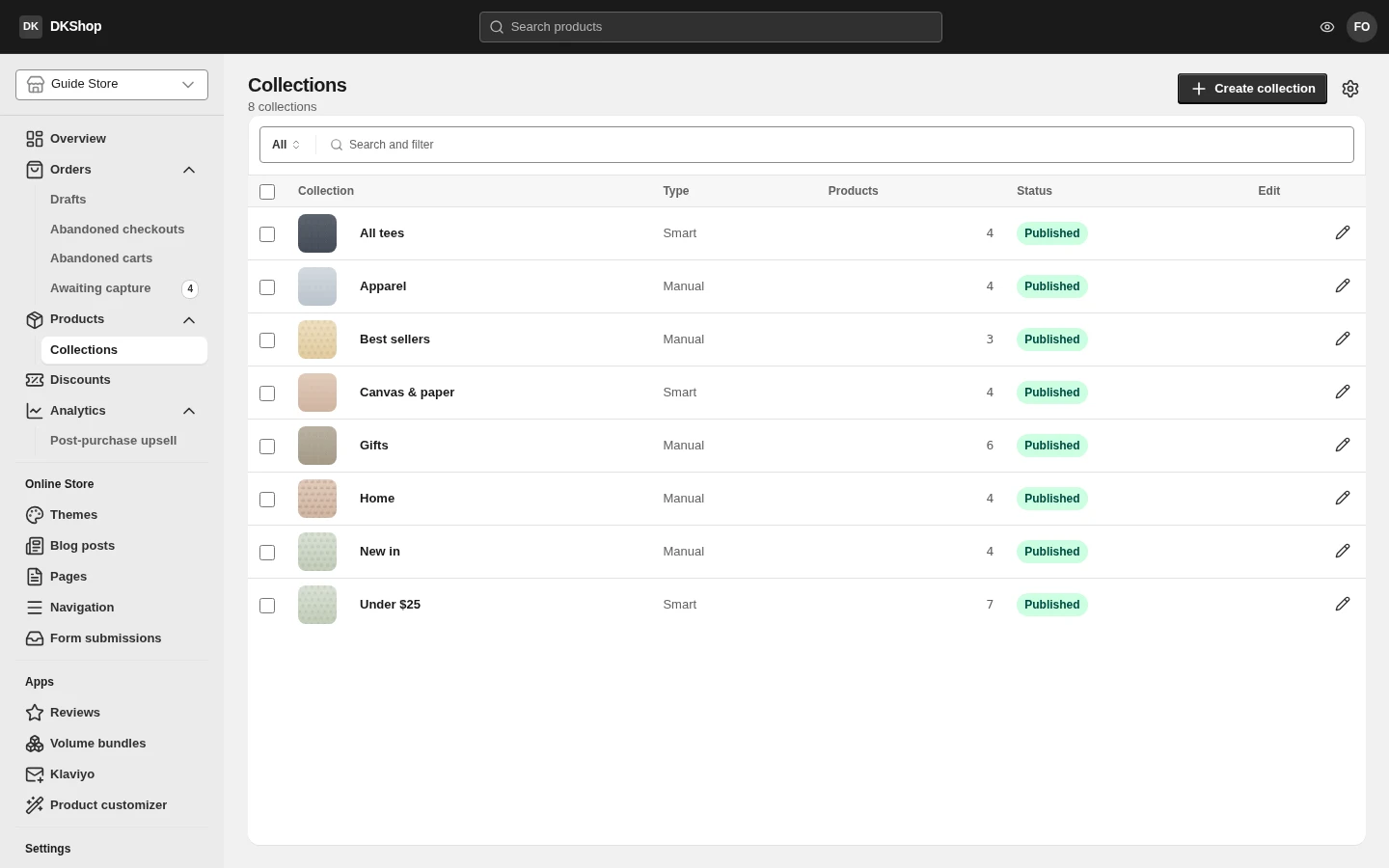
Manual or automatic
| Manual | Smart (automated) | |
|---|---|---|
| Membership | You add each product yourself | Products matching the conditions join on their own |
| Ordering | Drag and drop | By the rule in Sort products by |
| New products | You have to remember to add them | They join if they match |
| Good for | A deliberate selection, a campaign page | T-shirts, Under $25, In stock |
The rule for choosing is simple: if you can express the group as one sentence about product data, use Smart. "Everything whose Product type is T-shirt" is such a sentence. "The six things I want on the home page this month" is not.
You can change the kind, but do not do it lightly. Going Manual → Smart stops using the order you arranged by hand; going back the other way stops the conditions running and leaves you with an empty list.
Creating an automatic collection
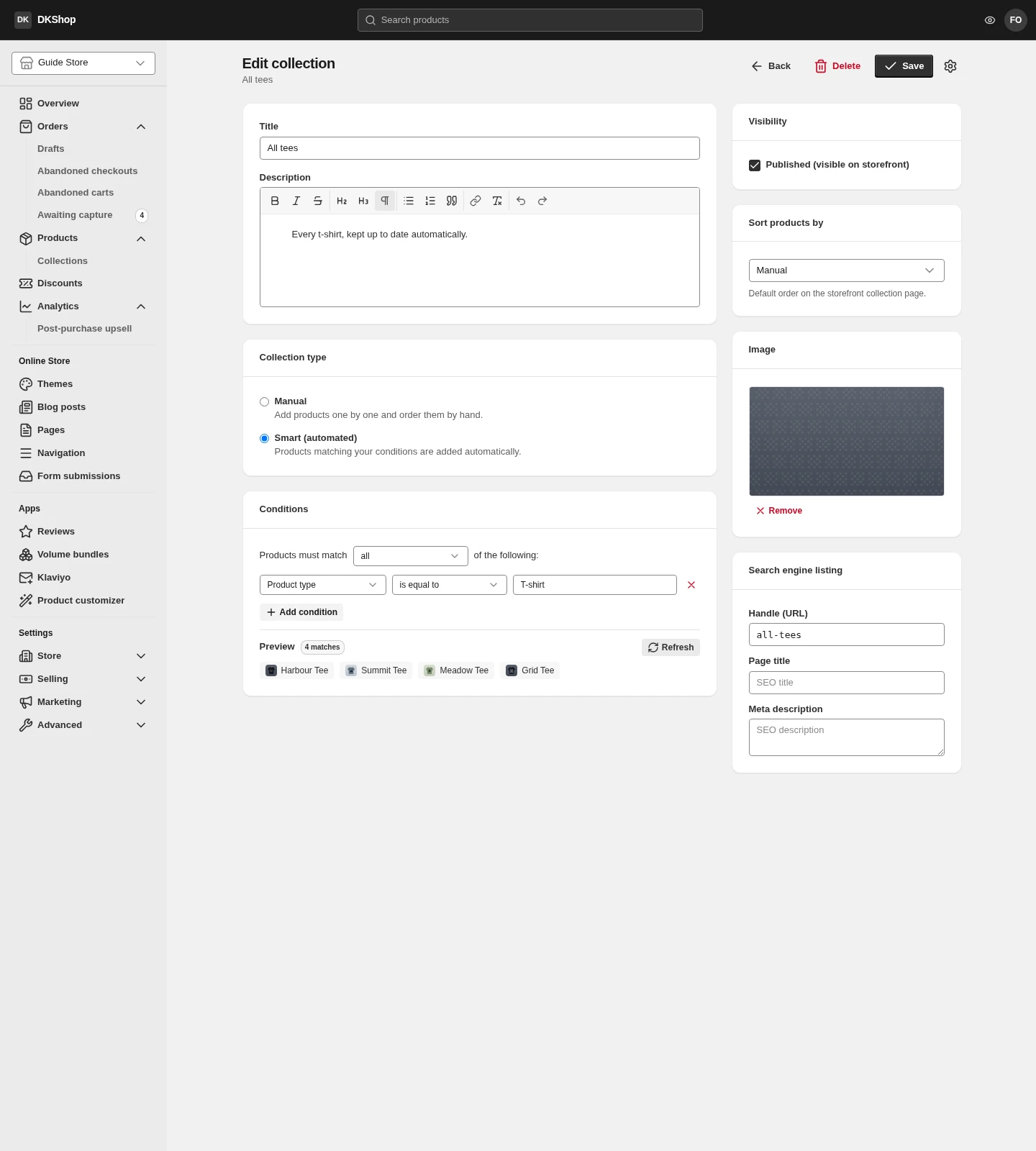
Title — the display name. Handle (URL) fills in from it when you leave the field, the same as a product.
In the Collection type block, choose Smart (automated). The Conditions block appears.
The first line: Products must match all / any of the following. all means
"and", any means "or". You cannot mix the two in one collection — if you need
more complicated logic, split it into two collections.
Each condition is three fields: a field, a comparison, a value.
| Field | Kind | Comparisons available |
|---|---|---|
| Product tag | text | is equal to · is not equal to · contains · starts with · ends with |
| Product title | text | (as above) |
| Product type | text | (as above) |
| Vendor | text | (as above) |
| Price | money | is equal to · is not equal to · is greater than · is less than |
| Compare-at price | money | (as above) |
| Inventory stock | number | (as above) |
The value box changes with the field: a money field hints e.g. 50.00, a number
field hints e.g. 10.
Press Add condition for another line.
The Preview box only runs when you press Refresh, or when you have just edited a condition. Reopen a saved collection and it reads "No products match yet — add a condition." even though the conditions are still there and still matching — that is the empty state for no conditions at all, not a result. Press Refresh to see the real number; the badge beside Preview then reads
N matcheswith the first few products. This does not affect the storefront: the collection page always shows the products that really match.
The right-hand column
Visibility — the Published (visible on storefront) checkbox. Untick it to build a collection now and open it later.
Sort products by — the default order on the collection page:
| Value | Notes |
|---|---|
| Manual | The order you arranged. Only meaningful on a Manual collection |
| Best selling | By units sold |
| Product title A–Z / Z–A | Alphabetical |
| Price: low to high / high to low | By price |
| Newest first / Oldest first | By creation date |
Image — the collection thumbnail. This is the image used in a category grid on the home page, so a collection without one leaves a gap there.
Search engine listing — Handle (URL), Page title, Meta description. A handle already in use reports "Handle already in use" as you type, rather than waiting until you save.
Manual collections
Choose Manual in the Collection type block. After you save for the first time, the Products block appears with an Add products button.
Each row has up/down arrows to reorder it and an ✕ to take it out of the collection — out of the collection, not deleted from the store.
The order you arrange only applies while Sort products by is set to Manual.
You must save before you can add products. The Products block only appears once the collection exists, because membership is stored against the collection rather than in the form.
Reference — the collection editor
| Block | Field | Notes |
|---|---|---|
| Main | Title | Fills in the Handle when you leave the field |
| Main | Description | Rich text, shown at the top of the collection page |
| Collection type | Manual | You add and order the products |
| Collection type | Smart (automated) | Matching products join on their own |
| Conditions | all / any | "and" or "or". Cannot be mixed |
| Conditions | Add condition | 7 fields × 4–5 comparisons |
| Conditions | Refresh | Re-runs the preview. Does not run on page load |
| Products (Manual only) | Add products | Only appears after the first save |
| Visibility | Published | Untick to hide it from the storefront |
| Sort products by | 8 values | Manual is only meaningful on a Manual collection |
| Image | Upload image | The image used in a category grid |
| SEO | Handle (URL) | Checked for duplicates as you type |
| SEO | Page title / Meta description | Left empty, the Title and Description are used |
| Top | Back · Delete · Save | Deleting a collection does not delete the products in it |
Next: Themes and the theme builder — choosing a theme, and editing the home page without touching a line of code.
Verified against 82dff35b1474 · 2026-08-29