Draft
A product is the one thing you must have before you can sell anything. This chapter goes from the list, through the form for a simple product, to the variant table — which is what decides whether a product with 16 versions is manageable or a nightmare.
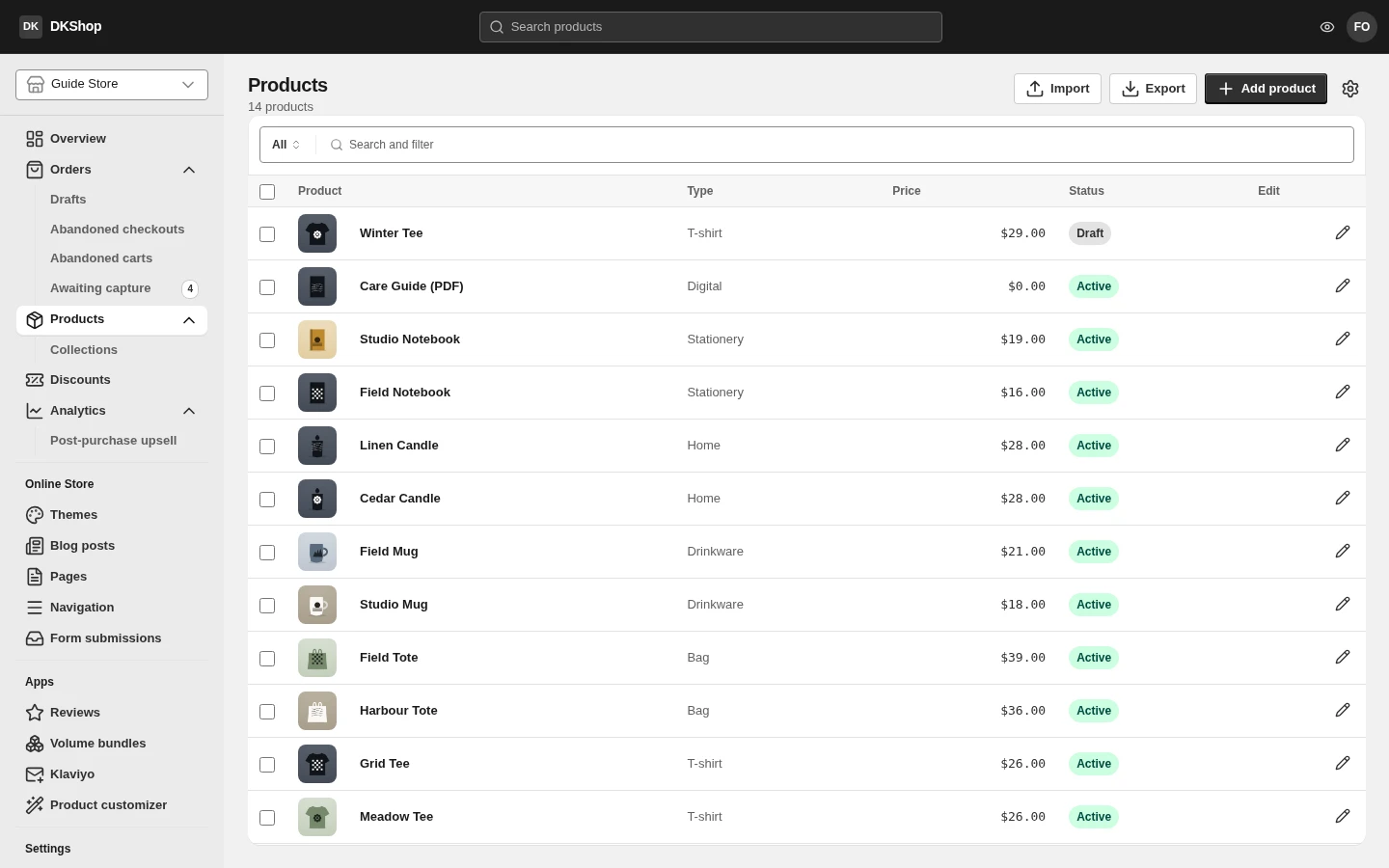
The product list
The Product column shows the first image and the name. Type is the Product type you set yourself (T-shirt, Home, Bag…) — free text, not a fixed taxonomy. Price is the first variant's price. Status is one of three values:
| Status | What it means |
|---|---|
| Active | Customers can buy it |
| Draft | Only you see it. The product URL returns 404 to shoppers |
| Archived | No longer sold, but kept so old orders still resolve |
Above the table: Import (from a Shopify-style CSV), Export (to a file), Add product.
The Search and filter bar is one control, not two. Press it for the list of filters; type and press Enter to search by name. Tick the box at the start of a row to select several products — the top bar turns into bulk actions.
Export respects your selection. With rows ticked, Export writes exactly those rows. With nothing ticked it asks whether you mean All products or This page — because those are two different answers, and guessing is a reliable way to export the wrong thing.
A simple product — one version
Most first products are this shape: one item, one price, no colour or size.
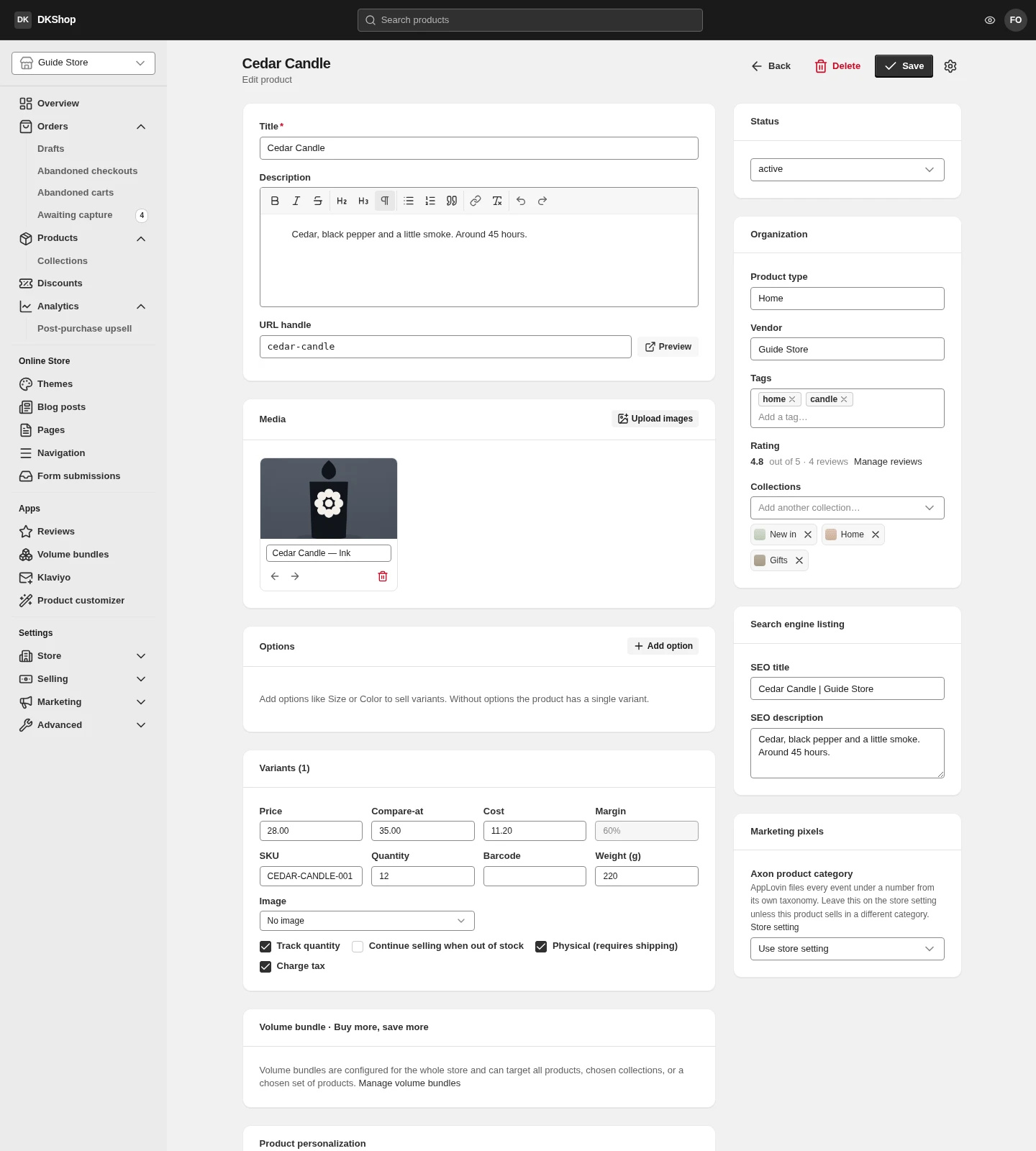
Press Add product and fill in:
Title — the product name. Required.
Description — the description, with a formatting toolbar (bold, italic, headings, lists, quotes, links). This is the text on the product page.
URL handle — the tail of the address,
myshop.dikafy.com/products/<handle>. It fills itself in from the Title when
you leave the Title field, and only while you have not edited it yourself. The
Preview button opens the real product page in a new tab.
Media — press Upload images. Each image has its own Alt text field below it; fill it in, because that is the text Google reads and the text shown when an image fails to load. The left/right arrows reorder them — the first image is the one used everywhere a product is listed.
The right-hand column:
Status — active / draft / archived, as above.
Organization — Product type, Vendor, Tags, and Collections (which collections this product belongs to; the next chapter covers them).
Search engine listing — SEO title and SEO description. Leave them empty and the store uses the product's own name and description.
Press Create.
Options and variants
If a product has a colour and a size, then every (colour, size) pair is its own variant — its own price, its own stock, its own SKU.
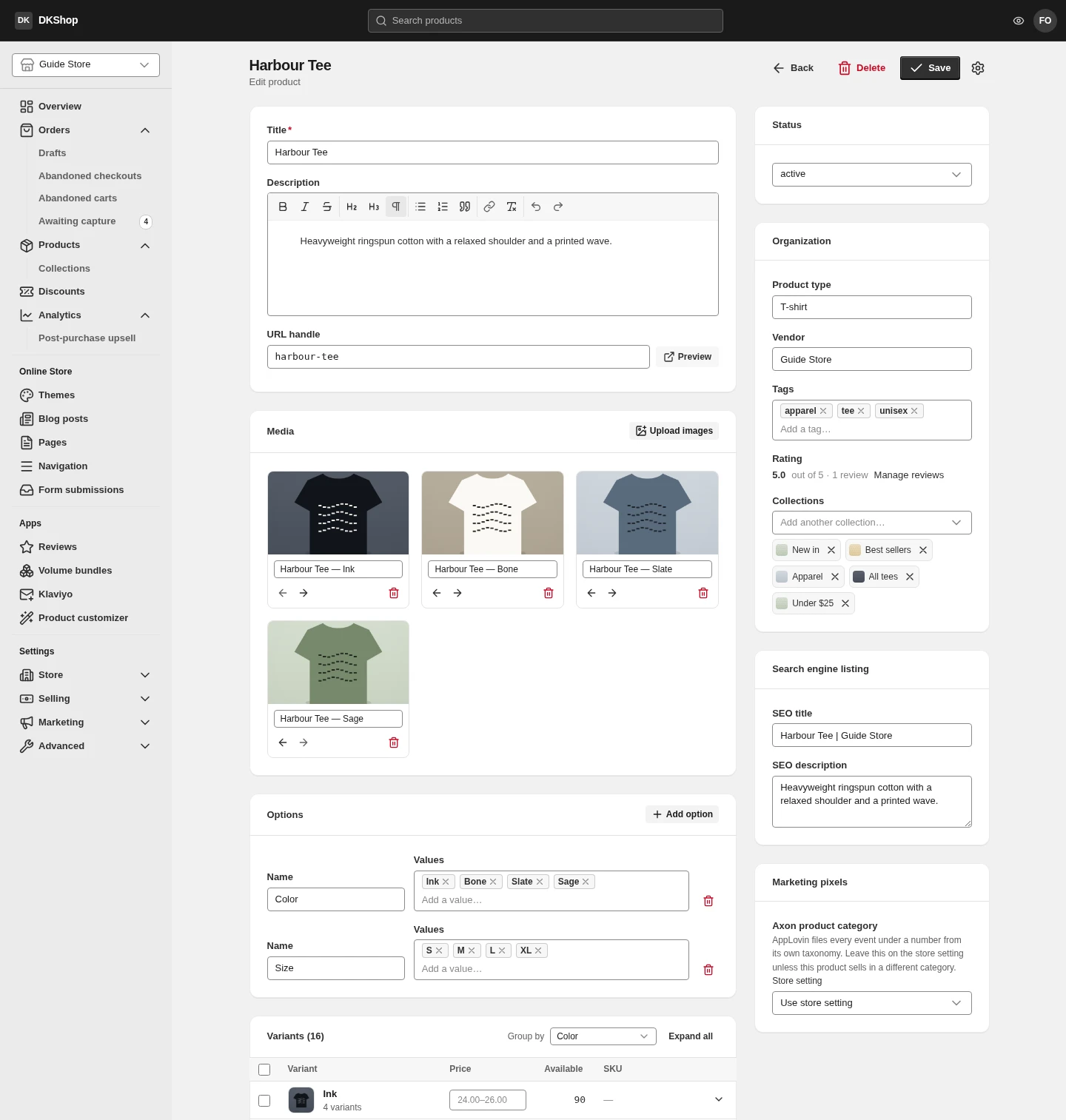
In the Options block, press Add option and fill in:
- Name — the axis:
Color,Size,Material… - Values — the values, one at a time, each followed by Enter.
Three options maximum. Four colours × four sizes = 16 variants, generated the moment you finish typing — you never create a variant by hand.
Editing an option edits the whole variant set. Add a size to a 16-variant product and it becomes 20; remove a colour and that colour's four variants go, taking their prices and stock with them. Settle the axes first, then fill in prices.
The variant table
This is where 16 variants become manageable. The table does not open every field of every variant — it groups.
Group by in the top right chooses the axis to group on. The default is the
first option, so 16 variants collapse to 4 rows — one per colour, each reading
"4 variants". Choose None to see them all flat.
Each group row lets you edit, in place, the four things sellers change in bulk:
| Column | Notes |
|---|---|
| Image | Press it to pick an image for the whole group. One photo per colour is the real job, and here it is one click instead of four |
| Price | An empty box shows the group's price range (24.00–26.00). Type a number and it applies to the whole group |
| Available | The group's total stock |
| SKU | The stock code |
Press the arrow at the start of a row to expand the group into its variants; Expand all opens every one. The rarely-used fields (weight, barcode, compare-at price…) sit behind each variant's own expander.
Bulk editing: tick several variants (or the box in the table header to select all) — the header row turns into a toolbar with Apply price, Apply quantity and Clear. This is where you set one price for a whole product.
An empty price is not a price of 0. An empty Price box on a group means "the variants in this group have different prices" — the faint number you see is the range, not a stored value. Typing into it overwrites all of them.
Reference — the product editor
| Block | Field | Notes |
|---|---|---|
| Main | Title | Required |
| Main | Description | Rich text: bold · italic · strikethrough · H2 · H3 · paragraph · lists · quote · link · clear formatting · undo |
| Main | URL handle | Fills in from Title until you edit it. Preview opens the real page |
| Media | Upload images | Per-image Alt text; arrows reorder; the first image is the thumbnail |
| Options | Name / Values | Three options maximum. Editing regenerates the variants |
| Variants | Group by | Defaults to the first option; None for a flat list |
| Variants | Expand all | Opens every group |
| Variants | selection bar | Apply price · Apply quantity · Clear |
| Right | Status | active · draft · archived |
| Right | Product type / Vendor / Tags | Free text |
| Right | Rating | Only shown when editing; derived from real reviews, not typed. Manage reviews opens the moderation page |
| Right | Collections | Add the product to manual collections |
| Right | SEO title / SEO description | Left empty, the Title and Description are used |
| Right | Axon product category | The category for AppLovin advertising. Defaults to Use store setting — change it only when this product belongs to a different category from the rest of the store |
| Top | Back · Delete · Save | Delete only appears when editing |
Next: Collections — and the automatic conditions that save you adding every product to every group by hand.
Verified against 82dff35b1474 · 2026-08-29