Draft
Your store cannot take money until at least one payment gateway is connected. Dikafy does not hold funds for you: you connect your own Stripe / PayPal / Airwallex account, and what customers pay goes straight into it. We are not in the middle, we hold no balance, and we do not pay out to you.
That has two consequences worth knowing straight away: you have to open an account with the provider yourself first, and every dispute or chargeback is between you and them.
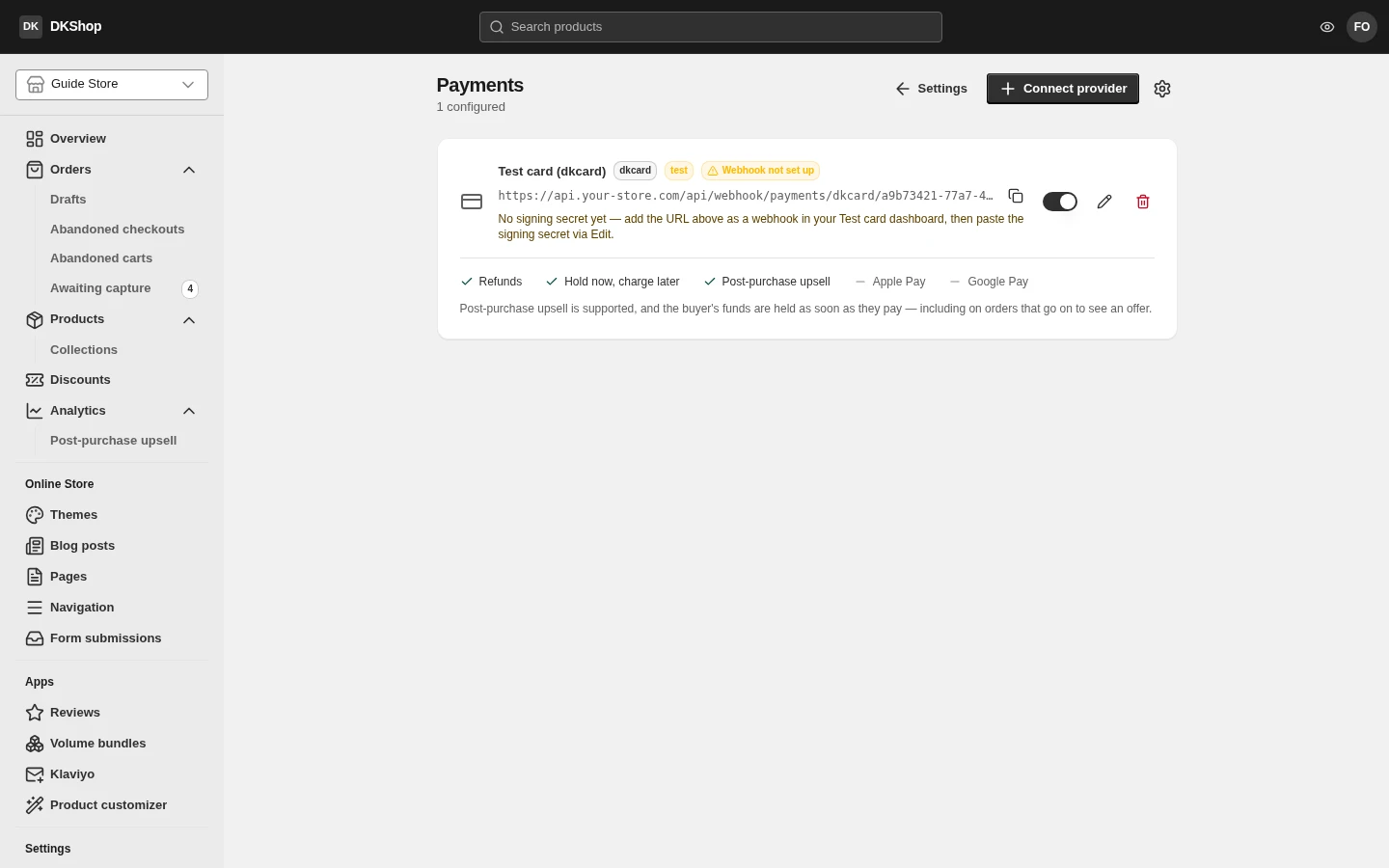
Four gateways, and which to use
| Gateway | Use it when | Notes |
|---|---|---|
| Test card (dkcard) | Testing, recording a demo | A fake gateway inside the platform. No real money |
| Stripe | The most common, the widest support | On-page cards, Apple Pay, Google Pay |
| PayPal | Your customers use the PayPal wallet | Wallet, express button, and on-page cards (if your account is approved) |
| Airwallex | You need to collect in many currencies | On-page cards |
You can connect several at once. The checkout then shows every enabled gateway and the customer picks.
dkcard is for testing, not for selling. It runs the whole money lifecycle — hold, capture, refund — against an in-memory ledger. The orders it produces look exactly like real ones, so do not leave it on once the store is open.
Connecting a gateway
Press Connect provider in the top right.
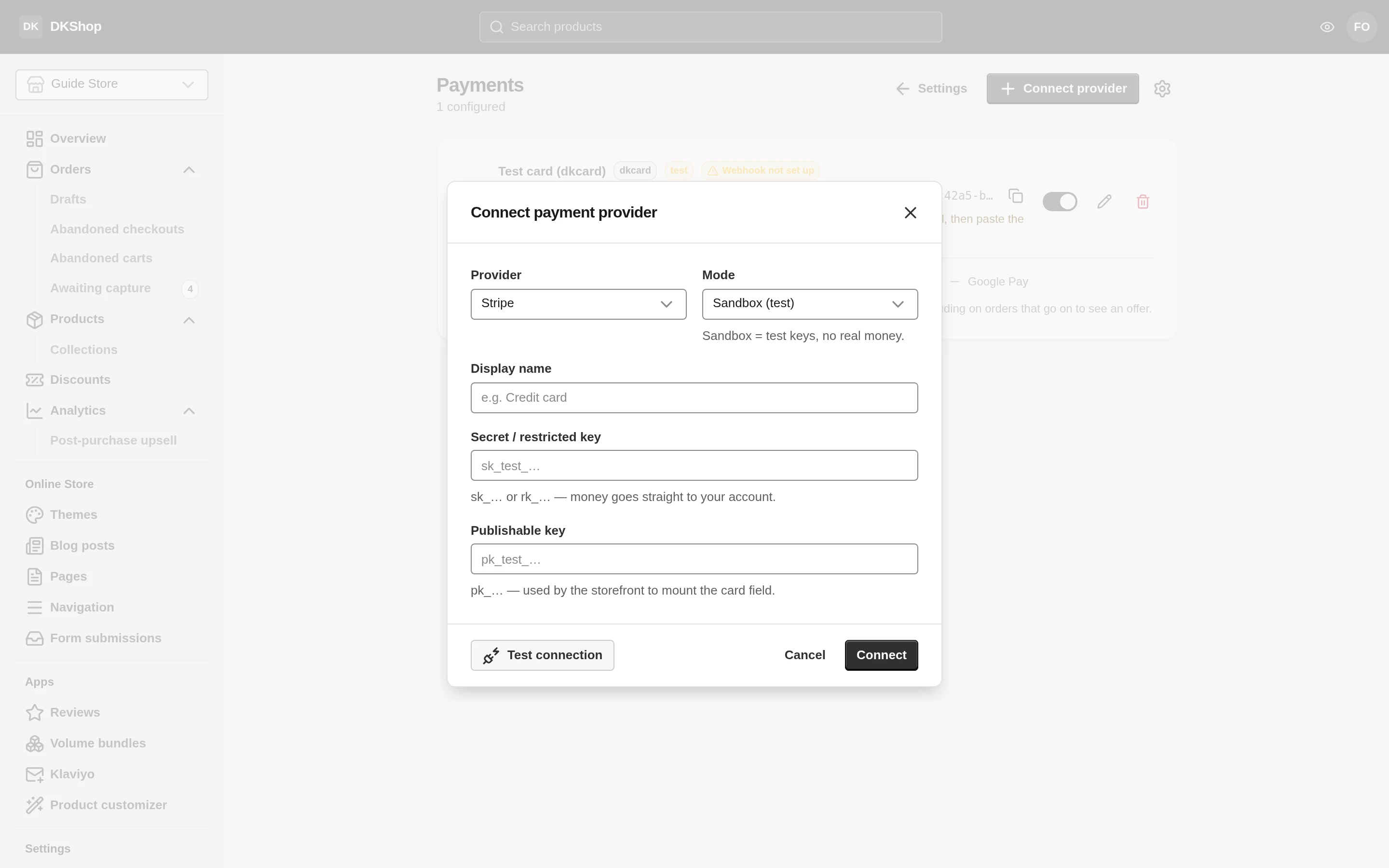
Provider — pick this first, because the fields below depend on it.
Mode — Sandbox (test) or Live. This field matters more than it looks, and the gateways do not all read it the same way:
- For PayPal and Airwallex, Mode chooses which servers the store calls: Sandbox calls the test servers, Live the real ones. Get it wrong and the keys are rejected — Test connection shows you immediately, which is why it is worth pressing.
- For Stripe, the key already says which kind it is (
sk_test_…vssk_live_…), so Mode here is only a label. Paste a live key into a gateway marked Sandbox and the money is still real; only the badge on the card lies.
Display name — the name customers see on the checkout. Left empty, the provider name is used. Many stores set it to Credit card rather than Stripe, because customers do not need to know which gateway you use.
Then the keys, which differ per gateway:
| Gateway | Fields | Where to find them |
|---|---|---|
| Stripe | Secret / restricted key (sk_… or rk_…)Publishable key ( pk_…) |
Stripe Dashboard → Developers → API keys |
| PayPal | Client ID, Secret Storefront URL (optional) |
PayPal Developer → Apps & Credentials |
| Airwallex | Client ID, API key | Airwallex → Account → Developer |
| dkcard | no fields | — |
Test connection — press it before saving. It calls the provider directly to ask whether the keys work, and it creates nothing: no test order, no transaction. A wrong key is something you find out here, rather than the first time a real customer presses pay.
Press Connect to save.
A secret key is never shown again. Open Edit on a connected gateway and the key field is always empty, with "Leave blank to keep the current key". Leaving it blank keeps the existing key; typing replaces it. The platform cannot read it back either — it is encrypted on save and decrypted only at the moment of calling the provider.
The webhook, and why every card mentions it
Under each gateway's name is a long address like:
https://api.your-store.com/api/webhook/payments/stripe/a9b73421-…
That is where the provider reports back to the store: this payment succeeded, that card was declined, this transaction has been charged back. Without it the store still gets the money most of the time — because the customer's browser reports back too — but if the customer closes the tab halfway or the bank is slow to approve, nobody reports anything and the order hangs.
The badge on the card tells you where you stand:
| Badge | Meaning | What you need to do |
|---|---|---|
| ✅ Webhook auto-connected | We created the endpoint at the provider for you | Nothing |
| ✅ Webhook set manually | You created it and pasted the signing secret | Nothing |
| ⚠️ Webhook not set up | Nothing can verify the events sent back | See below |
Stripe, PayPal and Airwallex usually connect themselves. When they cannot (normally because the store has no public HTTPS domain yet), do it by hand:
- Press the copy icon beside the webhook address.
- In the provider's dashboard, create a webhook endpoint with that address.
- They give you a signing secret — copy it.
- Come back, press Edit on the gateway card, paste it into Webhook signing secret, and save.
What this gateway can do
The lower part of each card lists five capabilities. This is the gateway's own answer, not a list we wrote.
| Line | What a ✓ means |
|---|---|
| Refunds | You can refund inside Dikafy, without going to the provider's dashboard |
| Hold now, charge later | Funds are held when the customer pays, and taken later |
| Post-purchase upsell | An offer funnel can run after the customer has paid |
| Apple Pay / Google Pay | The wallet button appears at the top of the checkout |
Directly below is a paragraph, and it is the most worthwhile line on the page, because it says when your store actually takes the money:
- "funds are held as soon as they pay" — the normal case. Pressing pay holds the funds immediately, including on an order that runs an upsell funnel.
- "the card is charged at the END of the funnel" — this gateway cannot raise the amount of an already-approved transaction, so on an order that runs a funnel the card is only charged at the end of it. Until then the funds are not held. If the card is declined at the new total, then depending on the gateway the order either falls back to the original amount or nothing is collected at all.
- "No post-purchase upsell" — orders paid through this gateway skip the funnel entirely.
If you do run a post-purchase funnel and your gateway is in the second case, the way to narrow the risk is to shorten the funnel timeout under Settings → Checkout.
Apple Pay: the domain has to be registered
On a gateway with Apple Pay, the card grows an Apple Pay domains block listing each of your store's domains with a ✓ or a ⚠️.
Apple only lets the Apple Pay button appear on a domain registered with that gateway account. On an unregistered domain the button silently does not appear — no error, for you or for the customer. That is exactly why this block exists: so you can see the silence.
Press Register to register every domain the store has. Connect a new domain and come back and press it again.
Apple Pay never appears in Chrome, however correctly it is registered. To test it you need Safari on Apple hardware with a card in Wallet.
Credit cards through PayPal
If your PayPal account is approved for Advanced Credit and Debit Card Payments, customers can pay by card on your own checkout page, without being sent to PayPal.
Only PayPal can answer whether your account is approved, so the Check button asks on your behalf. The switch beside it is locked until the answer is yes — because enabling a card form the account cannot process means customers type a card number and then get an error.
| Hint line | What it means |
|---|---|
| "Check whether your PayPal account can take cards…" | Never asked |
| "…is not approved for Advanced Credit and Debit Card Payments" | Not approved. Apply at PayPal, then press Re-check |
| "Available — turn this on…" | Approved, currently off |
| "Buyers can pay by card on your checkout…" | On |
Enable, disable, edit, delete
The switch on the card turns the gateway on and off at the checkout. Turning it off is the right way to pause a gateway: the keys stay, and turning it back on resumes.
The pencil icon opens the Edit form. The provider cannot be changed — to change it, connect a new gateway.
The bin icon deletes the gateway and its keys outright.
The delete button does not ask twice. Press it and it is gone, and you will have to fetch the keys from the provider again to reconnect. To pause, use the switch rather than the bin.
Deleting a gateway does not affect orders already taken through it. But you will no longer be able to refund those orders inside Dikafy, because a refund needs the keys — you would have to do it in the provider's own dashboard.
Reference — the Payments page
| Where | Control | Notes |
|---|---|---|
| Top | Connect provider | Opens the connect form |
| Gateway card | Provider badge | stripe / paypal / airwallex / dkcard |
| Gateway card | test / live badge | The label you chose when connecting, not something detected |
| Gateway card | Webhook badge | 3 states, see Webhook |
| Gateway card | Webhook address + copy button | Paste into the provider's dashboard |
| Gateway card | Switch | On/off at the checkout. Keys are kept |
| Gateway card | Pencil | Edit. An empty key field keeps the existing key |
| Gateway card | Bin | Delete. Does not ask twice |
| Capabilities | 5 lines ✓ / — | Declared by the gateway, not a fixed list |
| Capabilities | The paragraph below | Says when the money is really held |
| Apple Pay domains | Register | Registers your store's domains with the gateway |
| Credit Card | Check / Re-check | Asks PayPal whether the account is approved |
| Credit Card | Switch | Locked until approved |
| Connect form | Provider | Pick first — the fields below follow it |
| Connect form | Mode | The Sandbox / Live label |
| Connect form | Display name | The name customers see |
| Connect form | Test connection | Checks the keys, creates nothing |
| Connect form | Webhook signing secret | Only shown when auto-connect is unavailable |
| Connect form | Connect / Save changes | Save |
Next: Orders — how an order gets from the checkout into the list, and what you do with it.
Verified against 82dff35b1474 · 2026-08-29